Email Events
Email Events are automated emails that are sent to customers or admins when specific actions happen in the system — such as a booking confirmation, cancellation, or payment deadline reminder. Vaylo has 59 email events covering all key booking scenarios.
There are two places where email events are managed:
- Central Admin → where events are created and globally managed
- Vaylo Tours Admin (Settings → Email configure) → where you enable/disable which events are active for your system and customise the email content per language
Part 1: Central Admin — Email Settings
Go to Settings → Email Settings → Email events tab in the Central Admin portal.
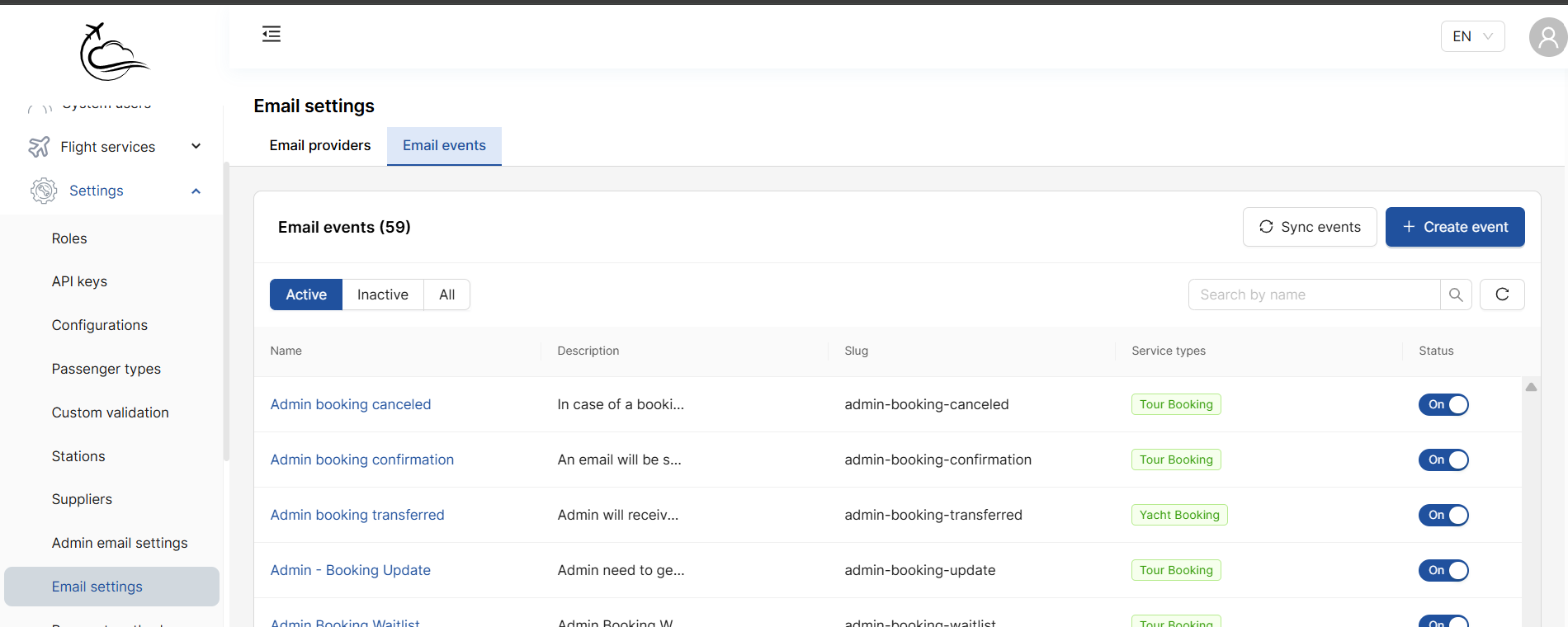
Understanding the List
| Column | Description |
|---|---|
| Name | The name of the email event (e.g., Admin booking canceled, Booking confirmation) |
| Description | A short description of when this email is triggered |
| Slug | The unique system identifier for this event (e.g., admin-booking-canceled) |
| Service types | Which booking type this event applies to — Tour Booking, Yacht Booking, or Not applicable |
| Status | Toggle On/Off to enable or disable this event globally |
You can filter events by Active, Inactive, or All, and search by name.
Syncing Email Events
If new events have been added in Central Admin, click Sync events to pull the latest events into your system.
Creating a New Email Event (Central Admin only)
Click + Create event to open the create form.
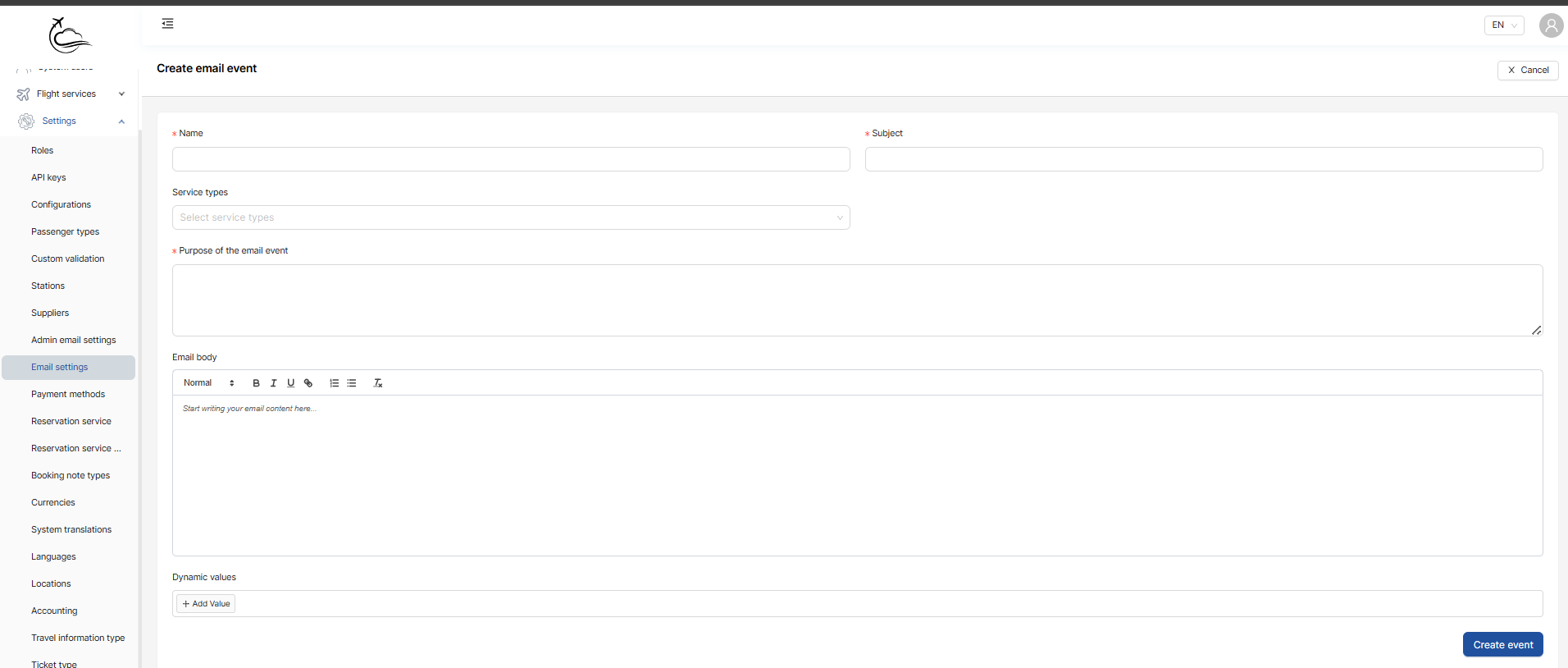
| Field | Description |
|---|---|
| Name (required) | The name of the email event |
| Subject (required) | The email subject line customers will see |
| Service types | Select which booking type this event applies to |
| Purpose of the email event (required) | Describe when and why this email is sent |
| Email body | Write the email content using the rich text editor. Supports bold, italic, underline, links, and lists |
| Dynamic values | Click + Add Value to insert variables that will be automatically filled in (e.g., customer name, booking reference) |
Click Create event to save.
⚠️ Email events are created and managed centrally. Individual Vaylo Tours admins cannot create new events — they can only enable/disable and customise existing ones.
Part 2: Vaylo Tours Admin — Email Configure
Go to Settings → Email configure in your Vaylo Tours admin panel.
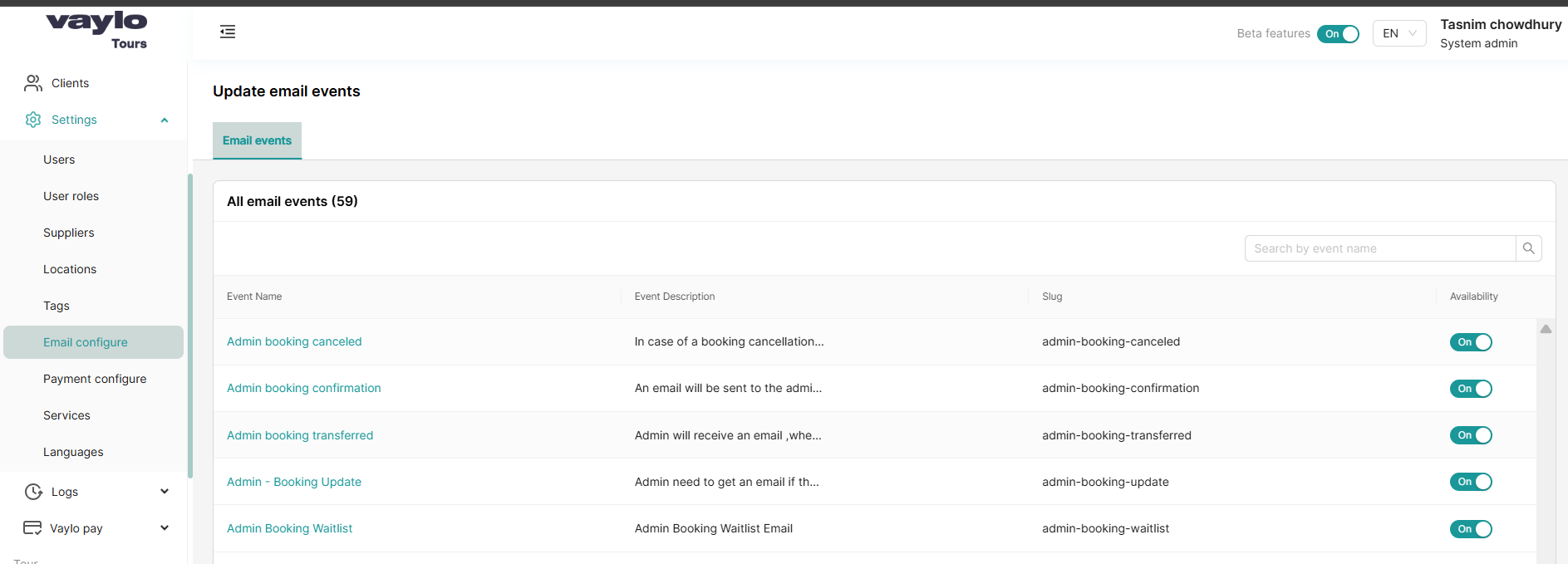
This page shows all 59 email events available for your system. Each event can be individually enabled or disabled for your tours.
Enabling or Disabling an Email Event
| Column | Description |
|---|---|
| Event Name | The name of the email event |
| Event Description | What triggers this email |
| Slug | The unique system identifier |
| Availability | Toggle On to activate, Off to deactivate for your system |
Toggle Availability to On for all events you want active. Only enabled events will send emails to customers or admins.
Editing an Email Event Template
Click on any event name to open the full template editor.
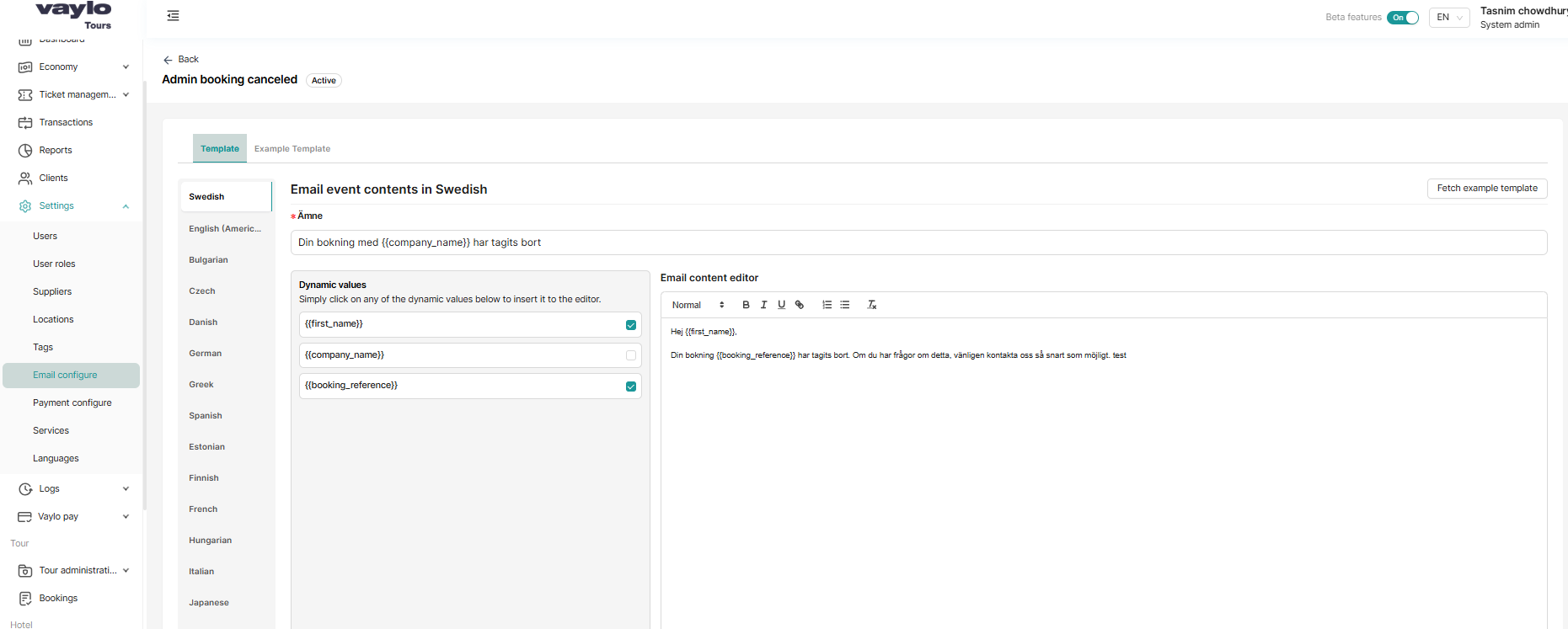
Template Tab
This is where you customise the actual email content that gets sent.
Language selection (left panel)
Vaylo supports multiple languages. Select a language from the left panel (e.g., Swedish, English, Bulgarian, Danish, German, French) to edit the email content for that language.
Subject line
Enter the email subject for the selected language. You can use dynamic values directly in the subject line (e.g., Din bokning med {{company_name}} har tagits bort).
Dynamic Values (middle panel)
Dynamic values are placeholders that get automatically replaced with real data when the email is sent. To use them:
- Click on any dynamic value in the list to insert it into the email body
- Checked dynamic values (✅) are currently used in the email
Common dynamic values include:
| Dynamic value | What it inserts |
|---|---|
{{first_name}} | The customer's first name |
{{company_name}} | Your company name |
{{booking_reference}} | The unique booking reference number |
Email Content Editor (right panel)
Write your email body here using the rich text editor. You can:
- Use dynamic values by clicking them in the middle panel
- Format text with bold, italic, underline, links, and lists
- Write in the language selected on the left
Example email body:
Hej {{first_name}},

Din bokning {{booking_reference}} har tagits bort. Om du har frågor om detta,
vänligen kontakta oss så snart som möjligt.
Fetch example template
Click Fetch example template (top right of the editor) to load a pre-written example template from central admin for that event. You can use this as a starting point and customise it.
Example Template Tab
Click the Example Template tab to preview what the default/example version of this email looks like. This is useful as a reference when writing your own version.
Complete Email Events Reference
Below is the full list of all email events available in Vaylo, grouped by category.
Admin Notifications
These emails are sent to admins when key actions occur in the system.
| Event | When it is sent |
|---|---|
| Admin booking canceled | When a booking is cancelled, the admin will receive an email notification |
| Admin - Booking Confirmation | When a booking is confirmed, an email is sent to the admin |
| Admin booking transferred | When a booking is transferred, the admin receives an email notification |
| Admin - Booking Update | When an existing booking is updated, the admin is notified by email |
| Admin Booking Waitlist | When a customer is added to a booking waitlist |
| Admin payment deadline report | A daily report email sent to the system/company admin regarding booking payment deadlines |
| Admin Quotation Change Request | When a customer requests a change to their quote |
| Admin Revenue Report | A monthly revenue report sent to the admin |
| Support ticket | When a support ticket has been created, the admin receives an email |
| Company onboarded | When onboarding is complete, an email is sent to the company mail |
| chat notification | When a customer sends a message to the AI chatbot Julia, sales personnel receive an email notification |
Booking Emails (sent to passengers)
These emails are sent to the primary passenger when booking-related actions occur.
| Event | When it is sent |
|---|---|
| Booking Confirmation | When a booking is created, the primary passenger receives a confirmation email |
| Booking canceled | When a booking is cancelled, the primary passenger receives an email |
| Booking Updated | When a booking is updated, the primary passenger is notified by email |
| Booking transferred | When a booking is transferred, the primary passenger receives an email |
| Booking information | Sent to the primary passenger when the admin manually sends "email booking info" for the booking |
| Booking Additional Cost | When additional costs are added to a booking, the primary passenger is notified by email |
| Booking attachment uploaded | When an attachment is uploaded to the booking, the primary passenger receives an email |
| Send custom tour offer | When a custom tour has been created under a passenger's name, they receive an email |
| tour offer | The travel proposal, including departure date, is sent to the passenger by email |
Payment & Invoice Emails
These emails relate to payments, deadlines, and invoices.
| Event | When it is sent |
|---|---|
| First Payment Deadline Reminder | Sent to passengers when a tour reaches the first payment deadline date |
| First payment deadline updated | Sent to passengers when the admin updates the first payment deadline date |
| Second Payment Deadline Reminder | Sent to passengers when a tour reaches the second payment deadline date |
| Residue Payment Deadline Reminder | Interval-based reminders sent to passengers approaching the residue payment deadline. Example: if the reminder is set to every 3 days and the deadline is in 15 days, the system will send 5 emails in total |
| Residue payment deadline updated | Sent to passengers when the admin updates the residue payment deadline date |
| Payment deadline report | A report of tour booking payment deadlines sent to the system administrator |
| Invoice payment | Sent to passengers when a new invoice is created |
Passenger & Account Emails
These emails are sent to passengers related to their profile and account.
| Event | When it is sent |
|---|---|
| New user created | When a primary passenger adds another passenger to the tour, the new passenger receives login credentials for the customer portal |
| Passenger added confirmation | The new passenger added by the primary passenger receives an email with all necessary tour information |
| Passenger email updated | When a passenger updates their email address, a confirmation email is sent to the new address |
| Create all passenger profile | Sent to all clients when a passenger has completed registration on the system |
| Update All Passengers Profile | Asks recipients to update missing trip information via a link to their customer portal |
| Update passenger information | Automated reminder emails for bookings with missing passenger information, sent to primary passengers based on set dates |
| Password changed | Sent to passengers when they change their account password |
| Password reset | Sent to passengers when they request a password reset |
| Password Reset Confirmation | Confirms that the password has been successfully reset |
| Generate New Password | Sent to customers with a new password when the admin clicks the "generate new password" button |
Tour & Travel Emails
These emails relate to tour content and travel information.
| Event | When it is sent |
|---|---|
| Flight ticket uploaded | Sent to passengers when flight tickets are uploaded to their tour |
| Travel information send before departure | Sent to passengers when travel information has been added to the tour, delivered before the departure date |
| Booking feedback email | After the tour ends, the passenger receives an email to give feedback on the tour |
| Booking feedback reminder email | A follow-up reminder email sent to passengers after the tour ends |
| chat history | All conversation history from a session with the AI chatbot Julia is sent to the user by email |
- Always configure email templates in all languages your customers use
- Use dynamic values like
{{first_name}}and{{booking_reference}}to personalise every email - Click Fetch example template as a starting point before writing from scratch
- Test each event after enabling it to make sure the email looks correct
- For payment reminder events, double-check the deadline intervals are correctly configured in your tour settings