Flights Section
Flights Section
Manage all flight-related information including PNRs, ticket details, and financial data.
Add or Manage PNR
-
Click Add or Manage PNR
The following PNR types are available:- Individual – PNR for a single passenger
- Group – A single PNR covering multiple passengers
- Amadeus – Import PNR data from Amadeus GDS
- Sabre – Import PNR data from Sabre GDS
- Manual – Enter PNR details manually
-
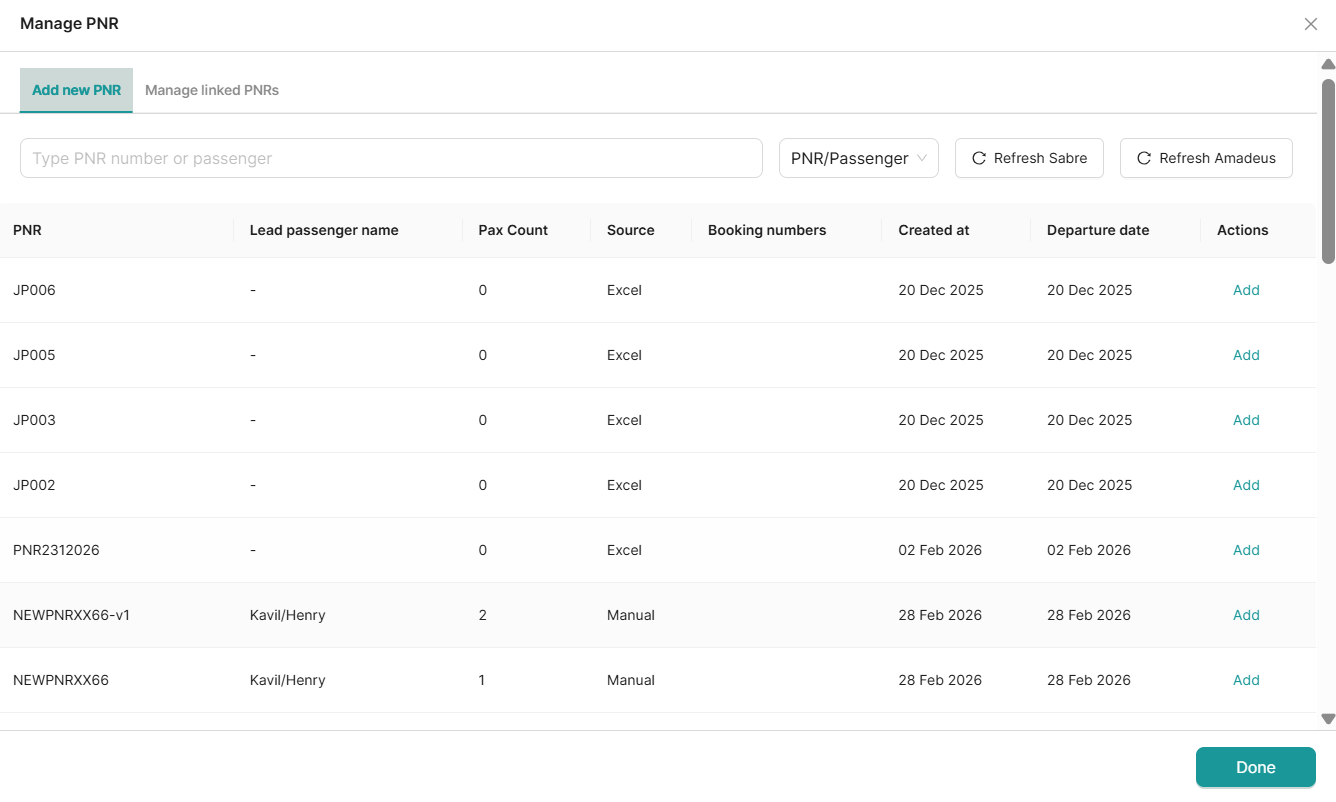
Use the Search bar to find PNRs by PNR name or passenger name. The filter must be set to either PNR or passenger name. Alternatively, filter results by selecting an agent ID from the filter dropdown.
-
Refresh Sabre and Refresh Amadeus buttons are available to manually sync newly added PNRs. Although PNRs sync automatically, these buttons can be used to confirm the latest data is reflected.
-
Click Add to add a PNR. A confirmation popup will appear — click Yes to proceed. Once all desired PNRs have been added, click Done.
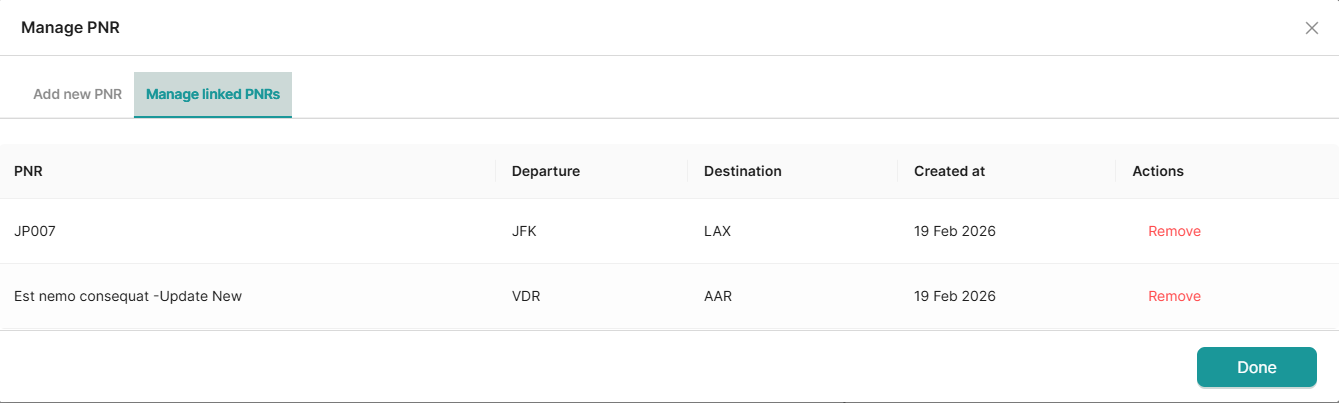
Users can manage their linked PNRs by clicking the Manage Linked PNR button. From here, it is possible to view all listed PNRs and remove any that are no longer needed.
PNR Listing
Once added, PNRs appear in the Flights section displaying:
- PNR number
- Supplier details
- Departure
- Time
- Name
- From
- To
- Status
- Flight numbers
- Oby
- Remarks

Adding a Flight Line
Steps
- Click Add Line
- Fill in flight information:
| Field | Description |
|---|---|
| PNR | Passenger Name Record number |
| Supplier | Airline or booking agent |
| Start Date | Departure date |
| End Date | Arrival date |
| Name | Flight name/description |
| Departure | Departure airport code |
| Destination | Arrival airport code |
| Status | Booking status (Confirmed, Pending, etc.) |
| Flight No. | Flight number |
| Flight Time | Departure time |
| Oby | On behalf of (if applicable) |
| Remarks | Additional notes |
- Click Save

Adding Financial Line
Track costs and pricing for each flight PNR.
Financial Fields
- Locate the flight PNR
- Click Add Financial Line
- Enter details:
| Field | Description | Type |
|---|---|---|
| Quantity | Number of tickets | Input |
| Local Cost | Cost in supplier's currency | Input |
| Currency | Currency code (USD, EUR, etc.) | Select |
| Rate | Exchange rate | Input |
| Unit Cost | Cost per ticket in base currency | Calculated |
| Markup (%) | Percentage markup | Input |
| Markup | Markup amount | Calculated |
| Net | Cost + Markup | Calculated |
| VAT (%) | VAT percentage | Input |
| VAT | VAT amount | Calculated |
| Unit Price | Final price per ticket | Calculated |
| Total | Total for all tickets | Calculated |
- Click Save
Unit Cost, Markup amount, Net, VAT amount, Unit Price, and Total are calculated automatically based on your inputs.

Link Passenger to Flight
Associate specific passengers with flight bookings.
Steps
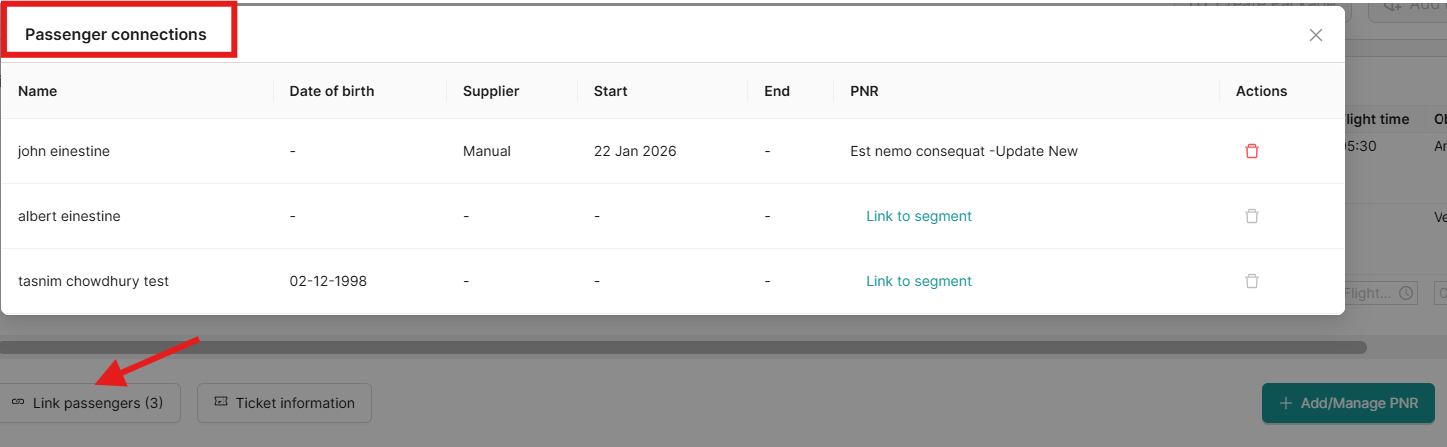
- Click Link Passenger
- Click on link to segment
To remove a linked PNR, click the Delete button.
View Ticket Information
Access detailed ticket data for any PNR.
Steps
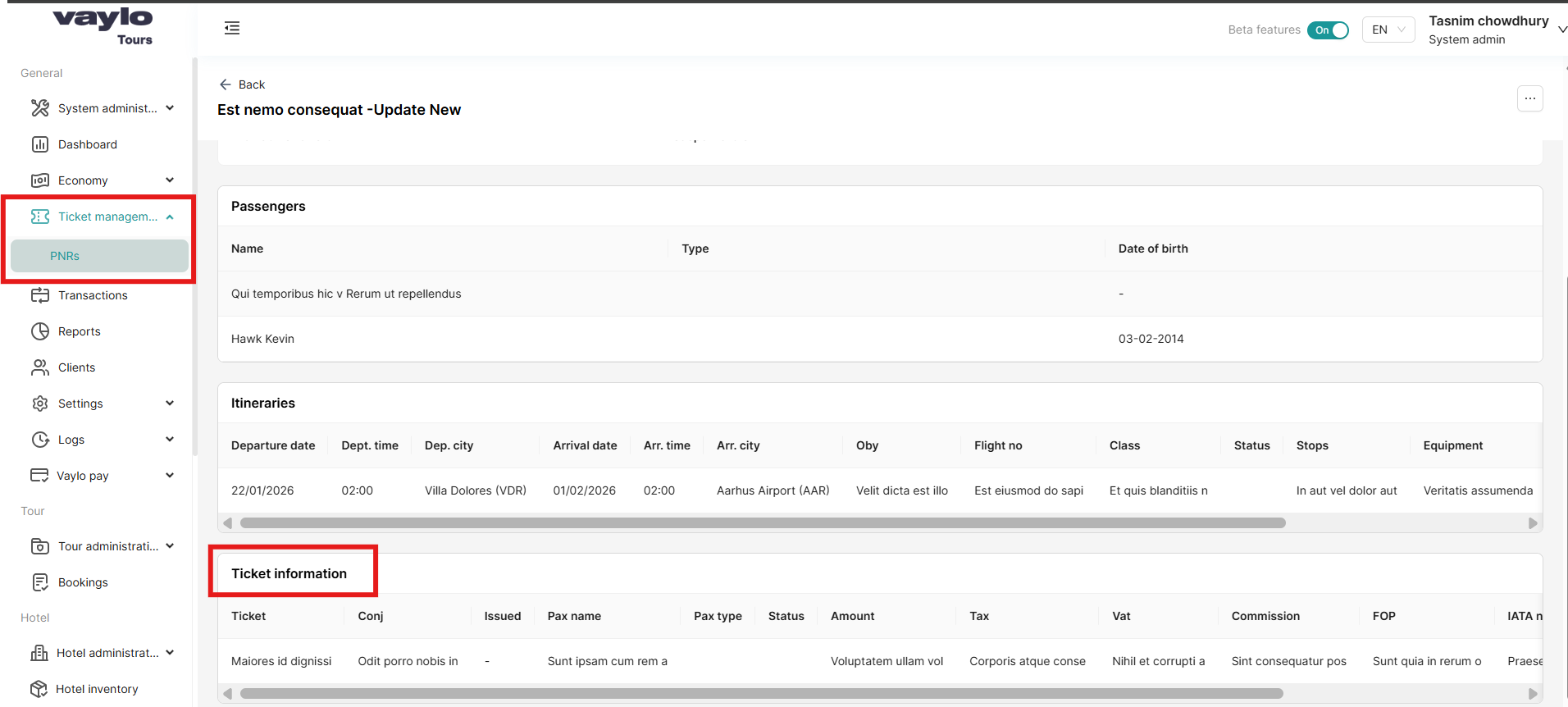
- Click Ticket Information
- View displayed information:
- Ticket numbers
- Conjunction
- Issued
- Pax name
- Pax type
- Status
- Amount
- Tax
- VAT
- Commission
- FOP
- IATA no
Notes
If a PNR has associated tickets, the ticket information will be listed here. Clicking on a PNR name redirects to the Ticket Management module in the Admin Portal, filtered to that specific PNR. The ticket section indicates whether a ticket has been added or not.

Ticket management:
Best Practices
✅ Always link PNRs to passengers
✅ Keep PNR records updated
✅ Add ticket information when available
✅ Note any PNR changes or amendments
✅ Review total costs before finalizing