Passengers Section
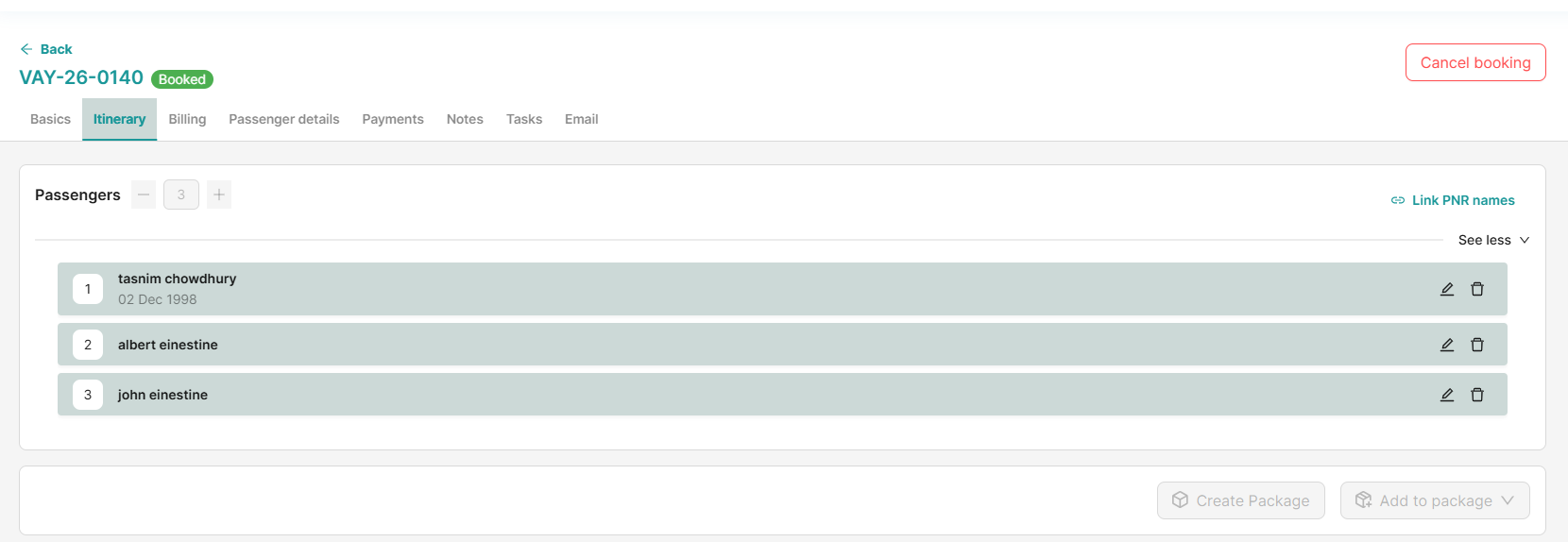
The Passengers section displays and manages all passengers associated with a booking.
Viewing Passenger List
The passenger list shows all passengers selected in the Client Details section of Tour Basics.
Information Displayed:
- Passenger names
- Passenger types
- Primary passenger indicator
View & Edit Passenger Details
Steps to Edit
- Locate the passenger in the list
- Click View Details
- Edit form opens with the following fields:
- Name - Full passenger name
- Date of Birth - DOB in required format
- Passenger Type - Adult, Child, Infant, etc.
- Click Save
Changes made here automatically reflect in the Passenger Details tab.

Deleting a Passenger
How to Delete
- Select the passenger
- Click the Delete button/icon
- Confirm deletion
You cannot delete passengers marked as Primary Passenger.

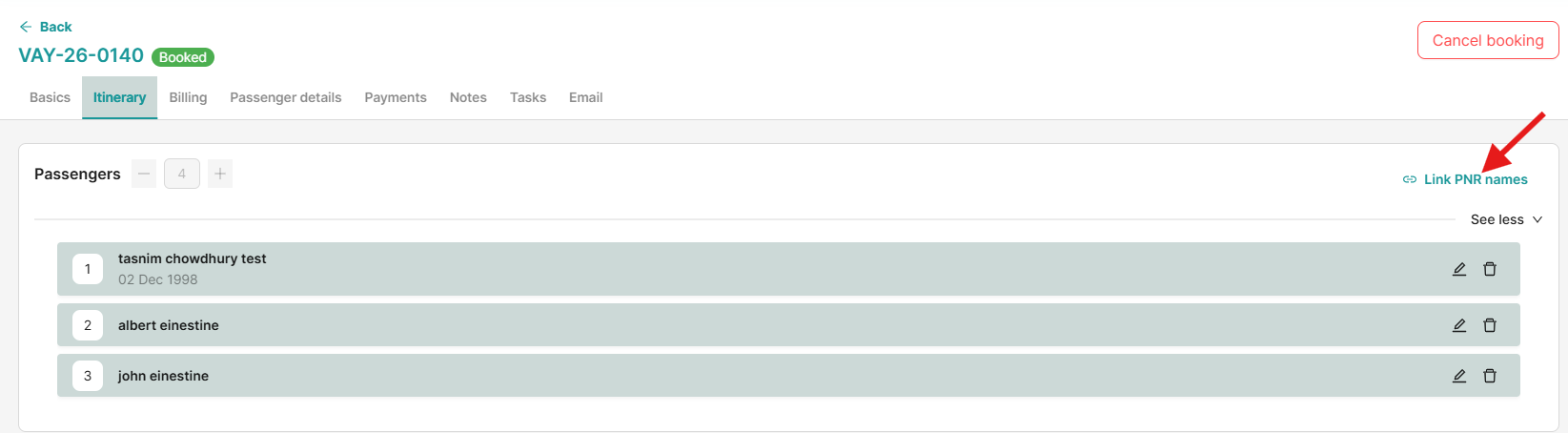
Link PNR Names
Located in the top-right corner of the passenger section, this feature allows users to fill remaining passenger slots using existing PNR records. For example, if a booking requires 4 passengers but only 3 have been added manually, the remaining passenger can be linked from PNR data.
Steps
- Click Link PNR Names
- A list of available PNRs with passenger names will appear
- Select a passenger name to link their PNR details
- Click Add Booking Passenger to include the remaining passenger in the booking
- Click Create Booking Passenger from PNR to add the passenger using their PNR information
- Click Save to confirm the changes
Benefits
- Accurate flight passenger tracking
Best Practices
✅ Always assign a primary passenger
✅ Keep passenger details updated
✅ Link passengers to all relevant services
✅ Verify passenger types for accurate pricing
✅ Review linked items before finalizing booking