Tour Templates
A Tour Template is a reusable base structure that you can use when creating new tours. Instead of filling in the same information every time, you create a template once and reuse it — saving significant time when adding multiple similar tours.
Go to Tour Administration → Tour Templates → Create tour template
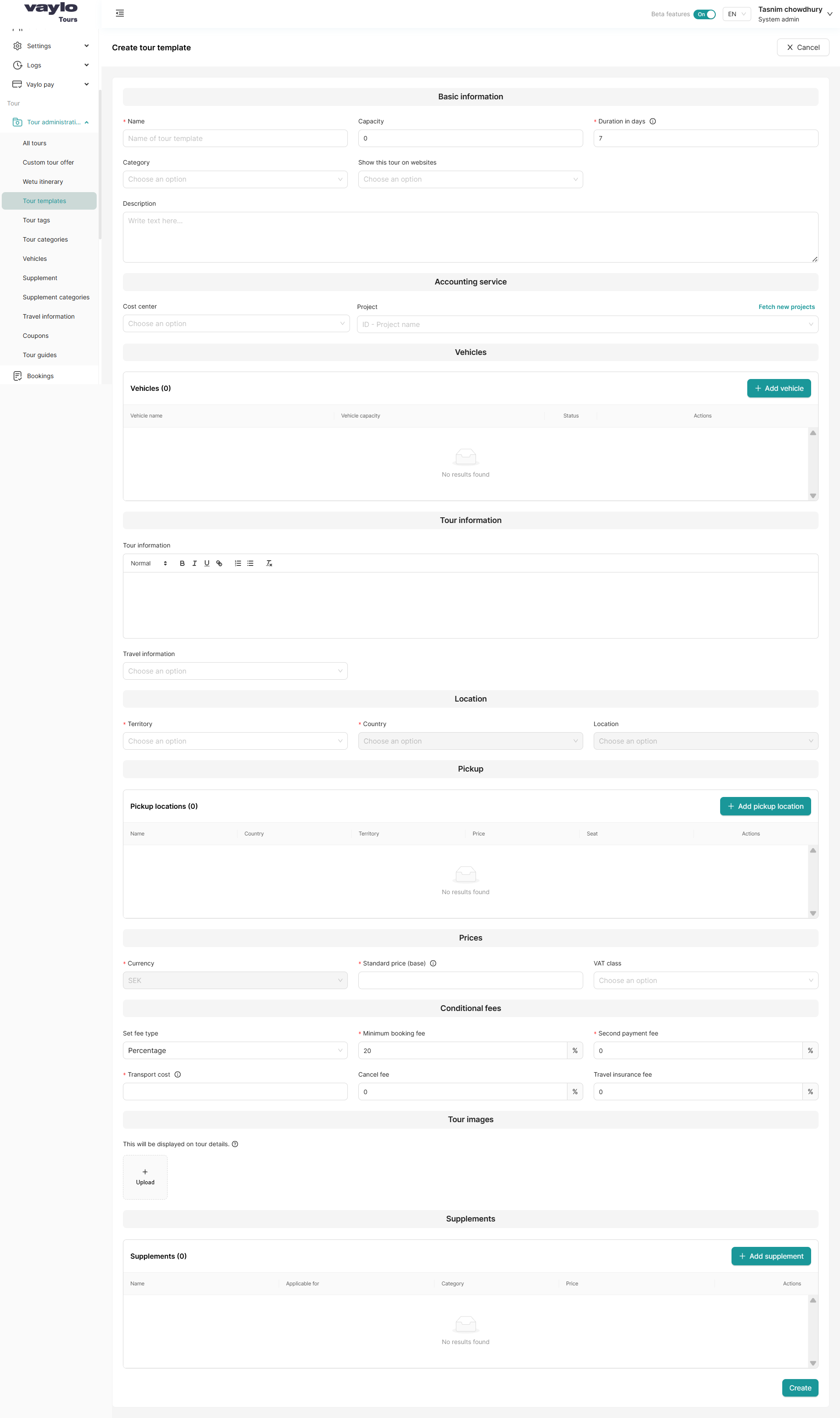
Section 1: Basic Information
| Field | Description |
|---|---|
| Name (required) | The name of the template (e.g., 7-Day Northern Lights Tour) |
| Capacity | Default number of passengers for tours using this template |
| Duration in days (required) | Default tour duration (e.g., 7) |
| Category | Pre-assign a tour category |
| Show this tour on websites | Choose which websites tours from this template appear on |
| Description | A default description that pre-fills when creating a tour from this template |
Section 2: Accounting Service
| Field | Description |
|---|---|
| Cost center | Pre-assign a cost center for accounting purposes |
| Project | Enter or select a project ID. Click Fetch new projects to load the latest from your accounting system |
Section 3: Vehicles
Pre-assign vehicles typically used for this type of tour.
- Click + Add vehicle
- Select from vehicles already added under Tour Administration → Vehicles
- The table shows: Vehicle name, Vehicle capacity, Status, and Actions
Section 4: Tour Information
| Field | Description |
|---|---|
| Tour information (rich text) | Add default programme or itinerary notes. Supports bold, italic, underline, links, and lists |
| Travel information | Default practical info for passengers (e.g., visa requirements, what to pack) |
Section 5: Location
| Field | Description |
|---|---|
| Territory (required) | The region associated with this tour type |
| Country (required) | Country of the destination |
| Location | Specific city or point |
Section 6: Pickup
Pre-define default pickup locations for this tour type.
- Click + Add pickup location
- The table shows: Name, Country, Territory, Price, Seat, and Actions
Pickup locations must first be created under Settings → Locations.
Section 7: Prices
| Field | Description |
|---|---|
| Currency (required) | Default currency (e.g., SEK) |
| Standard price (base) (required) | The default base price per person |
| VAT class | Select the applicable VAT class |
Section 8: Conditional Fees
| Field | Description |
|---|---|
| Set fee type | Percentage or fixed amount |
| Minimum booking fee (required) | Default deposit required (default: 20%) |
| Second payment fee (required) | Secondary payment percentage if applicable |
| Transport cost (required) | Default transport cost included in the tour |
| Cancel fee | Default cancellation fee |
| Travel insurance fee | Default travel insurance fee |
Section 9: Tour Images
Upload images that will be displayed on the tour details page.
- Click Upload
- Images added here automatically appear when a tour is created from this template
💡 Use high-quality images — these are what customers see when browsing your tours.
Section 10: Supplements
Pre-add the optional extras typically offered on this type of tour.
- Click + Add supplement
- The table shows: Name, Applicable for, Category, Price, and Actions
Supplements must first be created under Tour Administration → Supplement.
Saving the Template
Click Create (bottom right) to save the template.
Once saved, it will appear in the Tour Template dropdown at the top of the Create Tour form.
Fill in as many fields as possible in the template — the more complete it is, the less work needed each time you create a new tour from it.