Passenger Types
Passenger types define the categories of travellers that can be added to a tour booking — such as Adults, Children, or Infants. Each type has its own age range, discount settings, and booking rules.
How Passenger Types Work
Passenger types in Vaylo are synced from the Central Admin portal. This means:
- The available passenger types are first created and managed in the Central Admin
- Once synced, they appear automatically in your Vaylo system
- You can then adjust certain fields for your own system without affecting the central setup
💡 You cannot create passenger types from scratch in your local admin — they must first exist in Central Admin and be synced.
Viewing Passenger Types
Go to System Administration → Administration → Passenger Types tab
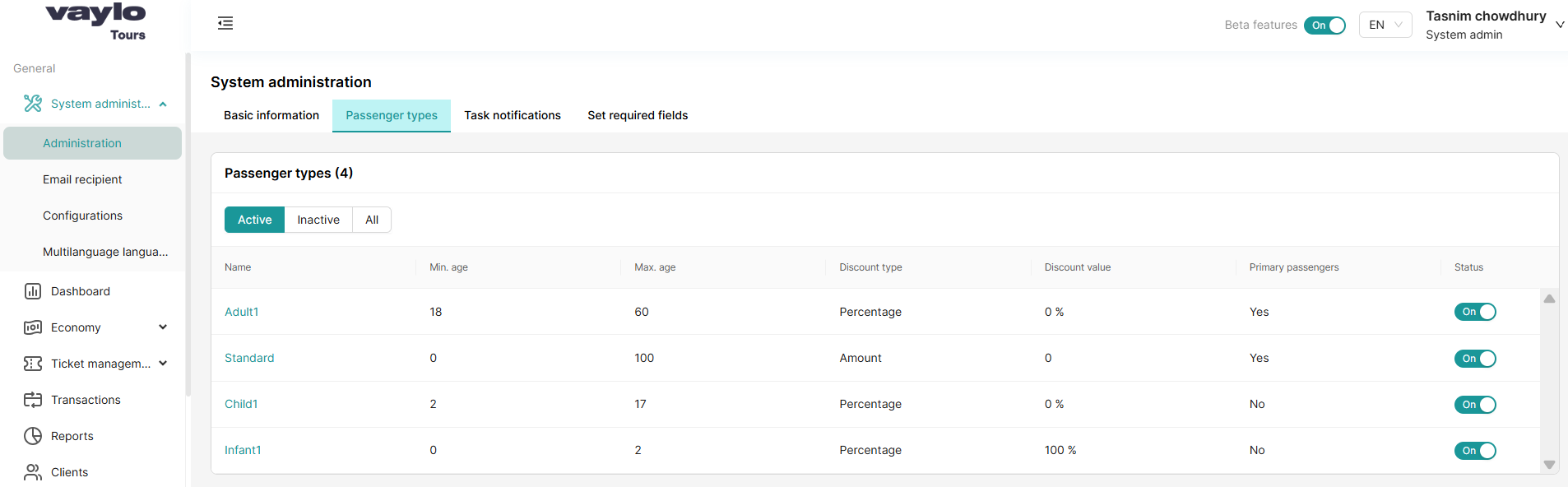
The list shows all passenger types with the following columns:
| Column | Description |
|---|---|
| Name | The passenger type name (e.g., Adult1, Child1, Infant1, Standard) |
| Min. age | Minimum age for this passenger type |
| Max. age | Maximum age for this passenger type |
| Discount type | How the discount is calculated — Percentage or Amount |
| Discount value | The discount applied to this passenger type |
| Primary passengers | Whether this type can be the primary/lead passenger on a booking (Yes or No) |
| Status | Whether this passenger type is currently active or inactive |
You can filter the list by:
- Active — currently enabled passenger types
- Inactive — disabled passenger types
- All — view all passenger types regardless of status
Syncing Passenger Types from Central Admin
If new passenger types have been added or updated in the Central Admin, you need to sync them to your system.
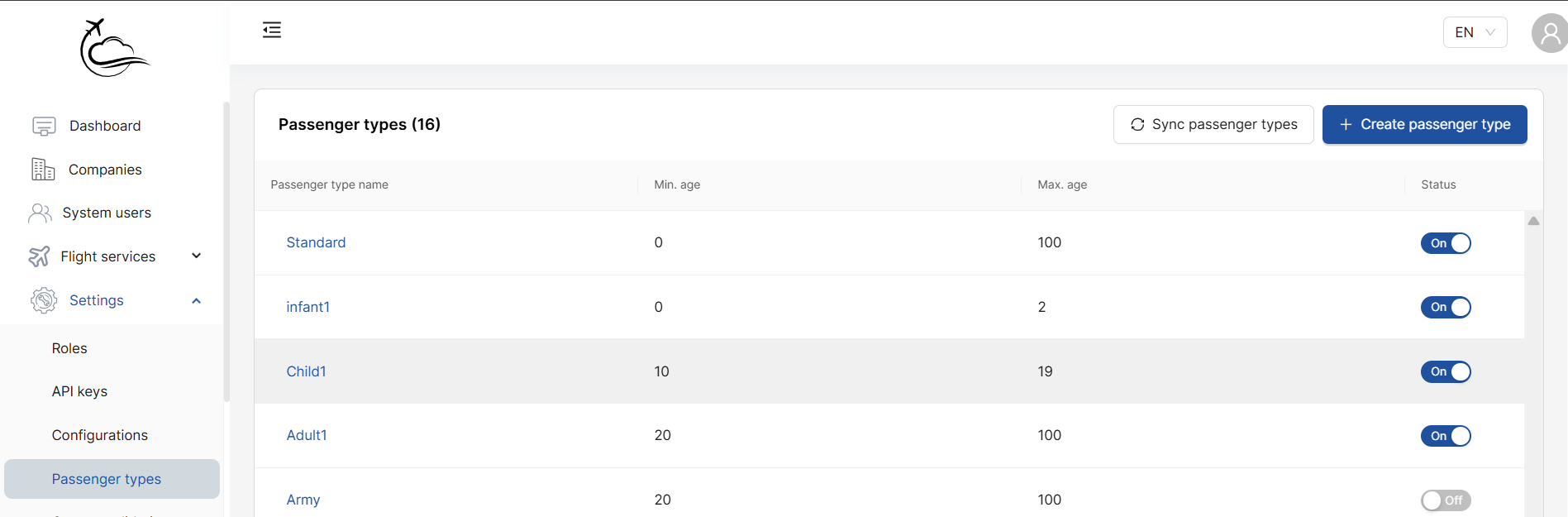
- Click Sync passenger types (top right of the passenger types page)
- The system will pull the latest passenger types from the Central Admin
- New or updated types will appear in your list immediately
Only passenger types that have been configured and enabled in Central Admin will sync to your system.
Editing a Passenger Type
While passenger types are synced from Central Admin, you can update certain fields locally.
Click on any passenger type name to open the edit form.
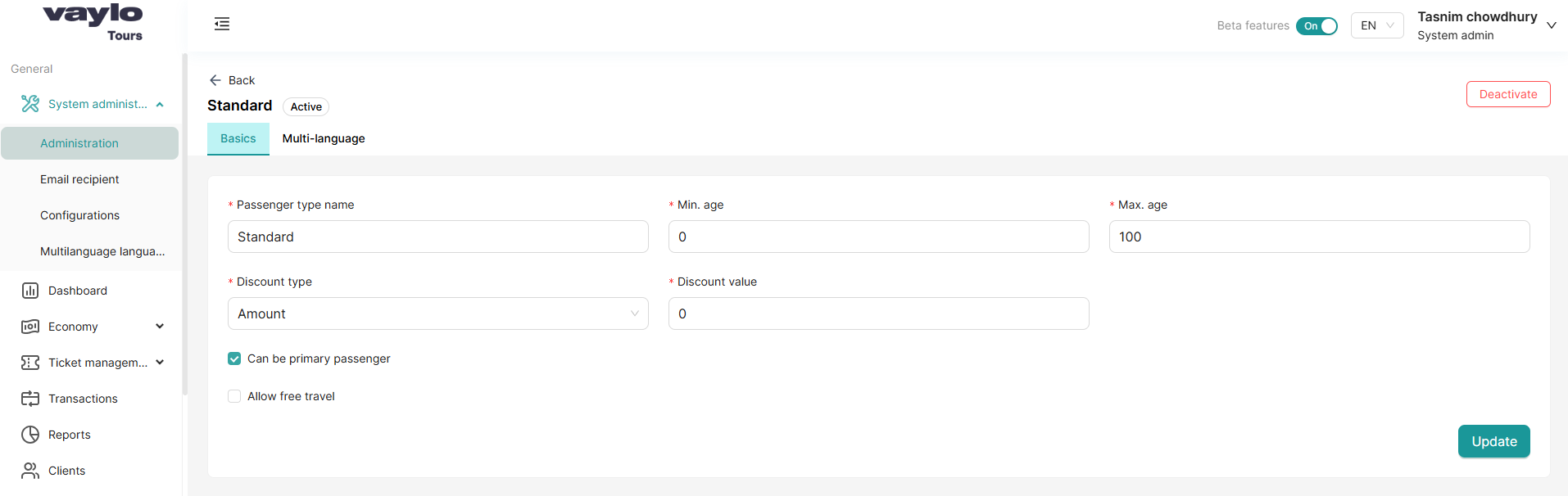
Basics Tab
| Field | Description |
|---|---|
| Passenger type name (required) | The display name of this passenger type |
| Min. age (required) | Minimum age for passengers of this type (e.g., 2 for children) |
| Max. age (required) | Maximum age for passengers of this type (e.g., 17 for children) |
| Discount type (required) | Choose Percentage (e.g., 10%) or Amount (e.g., 50 SEK) |
| Discount value (required) | The discount amount. Set to 0 for no discount |
Checkboxes
| Option | Description |
|---|---|
| Can be primary passenger | If checked, this passenger type can be the lead/main passenger on a booking. At least one passenger type should have this enabled |
| Allow free travel | If checked, passengers of this type travel for free (full discount applied automatically) |
Click Update to save your changes.
Multi-language Tab
Vaylo supports multiple languages for passenger type names. This is useful if your booking widget is displayed in more than one language.
- Click the Multi-language tab on the passenger type edit page
- Enter the translated name for each language you want to support
- Click Update to save
The language options available here depend on the languages configured in System Administration → Multilanguage Languages.
Activating and Deactivating Passenger Types
- To deactivate a passenger type, open it and click the Deactivate button (top right of the edit page). The type will move to the Inactive tab and will no longer be available for new bookings.
- To reactivate it, go to the Inactive tab, open the passenger type, and toggle the status back to On.
⚠️ Deactivating a passenger type that is already used in published tours may affect those tours. Review carefully before deactivating.
Example: Common Passenger Type Setup
Here is an example of a typical passenger type configuration:
| Name | Min. age | Max. age | Discount type | Discount value | Primary passenger |
|---|---|---|---|---|---|
| Standard | 0 | 100 | Amount | 0 | Yes |
| Adult1 | 18 | 60 | Percentage | 0% | Yes |
| Child1 | 2 | 17 | Percentage | 0% | No |
| Infant1 | 0 | 2 | Percentage | 100% | No |
In this example, *Infan