Basic Information
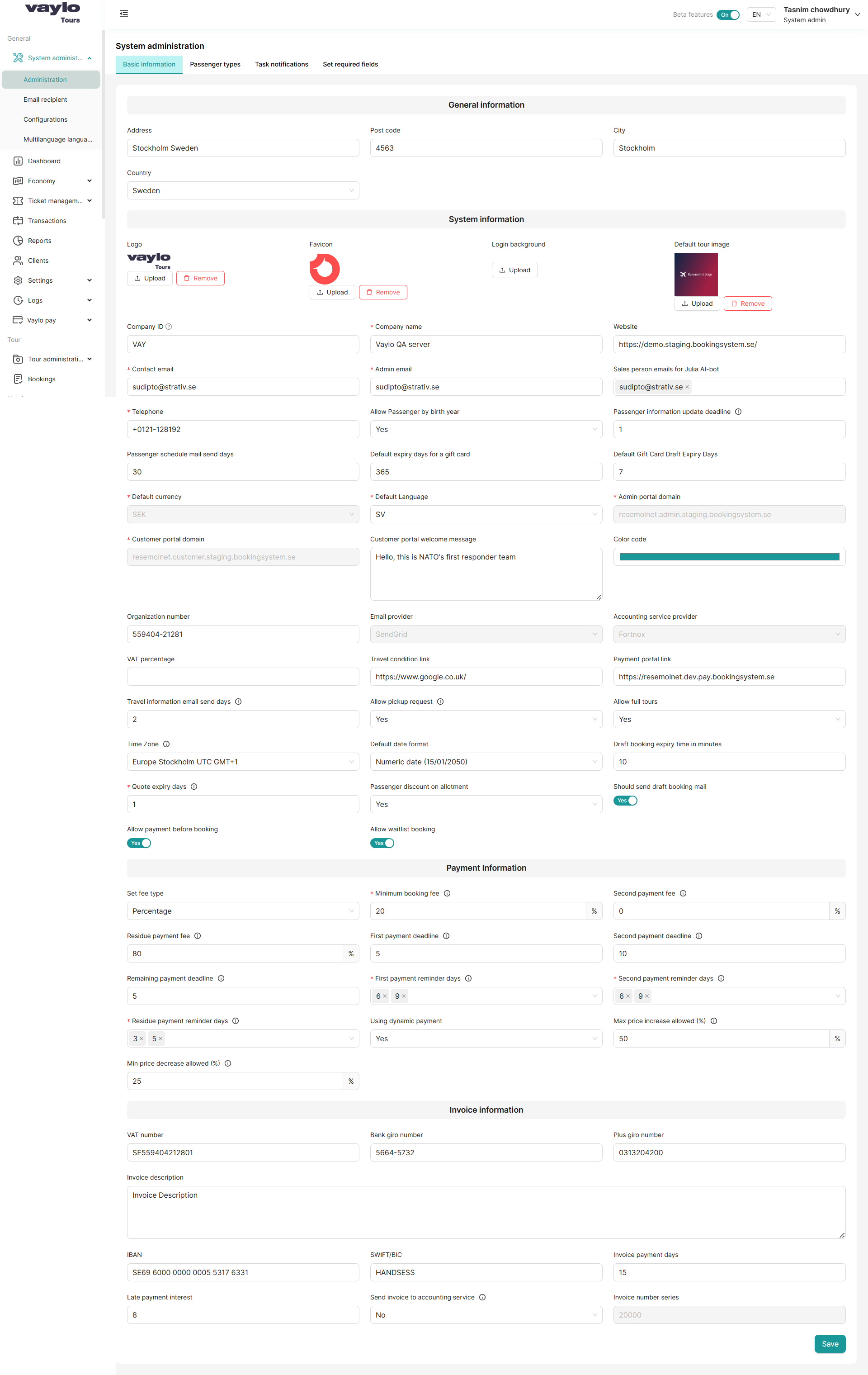
The Basic Information tab contains core configuration settings for the Vaylo platform. It is divided into three sections: General Information, System Information, and Payment Information.
Navigate to: System Administration → Administration → Basic Information
If your company operates more than one travel brand, branding, company identity, invoice, portal content, and booking-rule settings are now configured per brand under System Administration → Profiles instead of here. If you only run a single brand, nothing changes — your existing settings are used as-is via the automatically created default profile.
General Information
This section stores the company's physical address details.
| Field | Description | Example |
|---|---|---|
| Address | Full street address of the company | Stockholm Sweden |
| Post code | Postal/ZIP code | 4563 |
| City | City where the company is located | Stockholm |
| Country | Country of operation (dropdown) | Sweden |
System Information
This section controls the platform's identity and operational settings. Branding and company identity are now managed per brand — see Profiles → Branding and Profiles → Company details.
Passenger Settings
| Field | Description | Example |
|---|---|---|
| Allow Passenger by birth year | If Yes, passengers can be added using only their birth year instead of full date | Yes |
| Passenger information update deadline | Number of days before departure after which passengers cannot update their information | 1 |
| Passenger schedule mail send days | How many days before departure the schedule email is sent to passengers | 30 |
Portal Settings
| Field | Description | Example |
|---|---|---|
| Admin portal domain | The URL of the admin portal | resemolnet.admin.staging.bookingsystem.se |
| Customer portal domain | The URL of the customer-facing portal | resemolnet.customer.staging.bookingsystem.se |
The customer portal welcome message is now configured per brand — see Profiles → Customer portal content.
Language & Currency
| Field | Description | Example |
|---|---|---|
| Default currency | System-wide default currency for all bookings | SEK |
Currency remains a single, company-wide setting — profiles do not have separate currencies. Language is now configured per brand — see Profiles → Regional and formatting.
Branding & Integrations
| Field | Description | Example |
|---|---|---|
| Color code | Primary brand color shown in the platform UI | Teal (#00897B) |
| Organization number | Official business registration number | 559404-21281 |
| Email provider | Third-party email service used for sending emails | SendGrid |
| Accounting service provider | Connected accounting software | Fortnox |
| VAT percentage | Default VAT rate applied to bookings | e.g., 25% |
The travel condition link is now configured per brand — see Profiles → Customer portal content.
Operational Settings
| Field | Description | Example |
|---|---|---|
| Travel information email send days | Days before departure to send travel information email to passengers | 2 |
| Allow pickup request | If Yes, passengers can request a pickup location | Yes |
| Allow full tours | If Yes, tours can be marked as "full" and closed for new bookings | Yes |
| Passenger discount on allotment | If Yes, allotment passengers receive applicable discounts | Yes |
Time zone, date format, draft booking expiry time, quote expiry days, draft booking emails, and allow-payment-before-booking are now configured per brand — see Profiles → Regional and formatting and Profiles → Booking rules and behavior.
Payment Information
This section defines the payment structure and deadlines for bookings.
Fee Configuration
| Field | Description | Example |
|---|---|---|
| Set fee type | How fees are calculated — either as a Percentage or a fixed Amount | Percentage |
| Minimum booking fee | Minimum fee required at the time of booking | 20% |
| Second payment fee | Fee percentage for the second payment installment | 0% |
| Residue payment fee | Fee for the final/residue payment | 80% |
Payment Deadlines
| Field | Description | Example |
|---|---|---|
| First payment deadline | The first payment due date is calculated from the booking date based on the configured number of days and can be changed during booking | 5 days |
| Second payment deadline | The date is calculated from the departure date and can be changed during booking | 10 days |
| Remaining payment deadline | The date is calculated from the departure date and can be changed during booking | 5 days |
Payment Reminders
| Field | Description | Example |
|---|---|---|
| First payment reminder days | This setting determines the number of days after the booking has been completed when a payment reminder will be automatically sent to the customer. The reminder helps ensure timely payment and can be configured according to the company’s policies | 6 × 9 (multiple reminders) |
| Second payment reminder days | This setting defines the number of days before the due date of the second payment when a payment reminder is automatically sent to the customer. It helps ensure that customers are notified in advance and can make the payment on time. The reminder period can be adjusted according to company policy | 6 × 9 |
| Residue payment reminder days | This setting specifies the number of days before the final payment due date when a payment reminder is automatically sent to the customer. It ensures that customers are notified in advance so they can complete the payment on time. The reminder period can be adjusted according to the company’s policy | 3 × 5 |
Dynamic Pricing
| Field | Description | Example |
|---|---|---|
| Using dynamic payment | Enable/disable dynamic pricing rules for bookings | Yes |
| Max price increase allowed (%) | This setting defines the highest percentage by which a tour price provided by a third-party website can be increased dynamically, allowing flexibility in pricing based on demand or other factors | 50% |
| Min price decrease allowed (%) | This setting defines the highest percentage by which a tour price provided by a third-party website can be decreased dynamically, allowing flexibility in pricing based on demand or other factors | 25% |
Banking and invoicing details (VAT number, IBAN, invoice numbering, etc.) are configured per brand — see Invoice details on the Profiles page.
Saving Changes
After making changes in any section, click the Save button at the bottom right corner of the page.
⚠️ Note: Incorrect configuration of payment deadlines or fee types can affect booking flows and customer emails. Always double-check before saving.
Profile pages have their own Update button, separate from the Save button on this page. Changes to a profile only take effect once you click Update on that profile's own page.