Set Required Fields
This tab lets you control which fields are mandatory for customers to fill in during the booking process. Once a field is set as required here, it will be enforced on both the booking widget and the booking page — customers will not be able to complete their booking without filling it in.
Go to System Administration → Administration → Set required fields tab
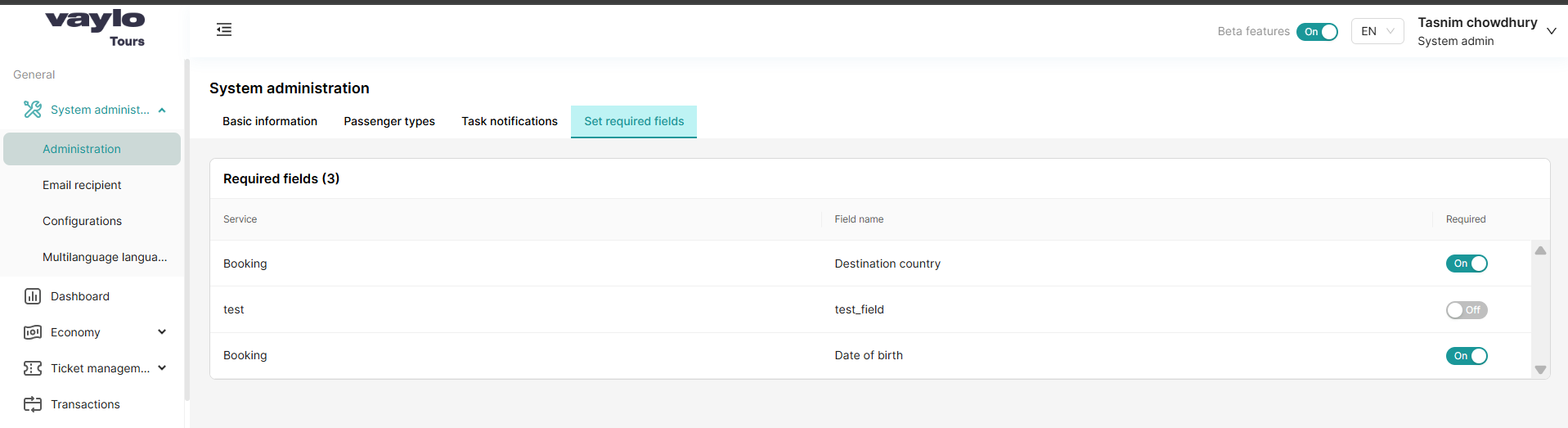
Understanding the List
The page shows all configured required fields with three columns:
| Column | Description |
|---|---|
| Service | The part of the system where this field applies (e.g., Booking) |
| Field name | The specific field that is being made required (e.g., Destination country, Date of birth) |
| Required | Toggle On to make the field mandatory, Off to make it optional |
Enabling or Disabling a Required Field
- Toggle the switch to On → the field becomes mandatory on the booking widget and booking page
- Toggle the switch to Off → the field becomes optional and customers can skip it
⚠️ If a field is set to On, customers cannot complete their booking without filling it in. Make sure you only require fields that are truly necessary.
Example Setup
| Service | Field name | Required |
|---|---|---|
| Booking | Destination country | ✅ On |
| Booking | Date of birth | ✅ On |
| test | test_field | ❌ Off |
In this example, customers must provide their Destination country and Date of birth to complete a booking.
Keep required fields to a minimum — the fewer mandatory fields, the smoother the booking experience for your customers.