Email Recipient
The Email Recipient section lets you define who receives email notifications for specific system events — such as booking confirmations, waitlist updates, or booking changes. Each event can have its own To, CC, and BCC recipients.
Go to System Administration → Email Recipient
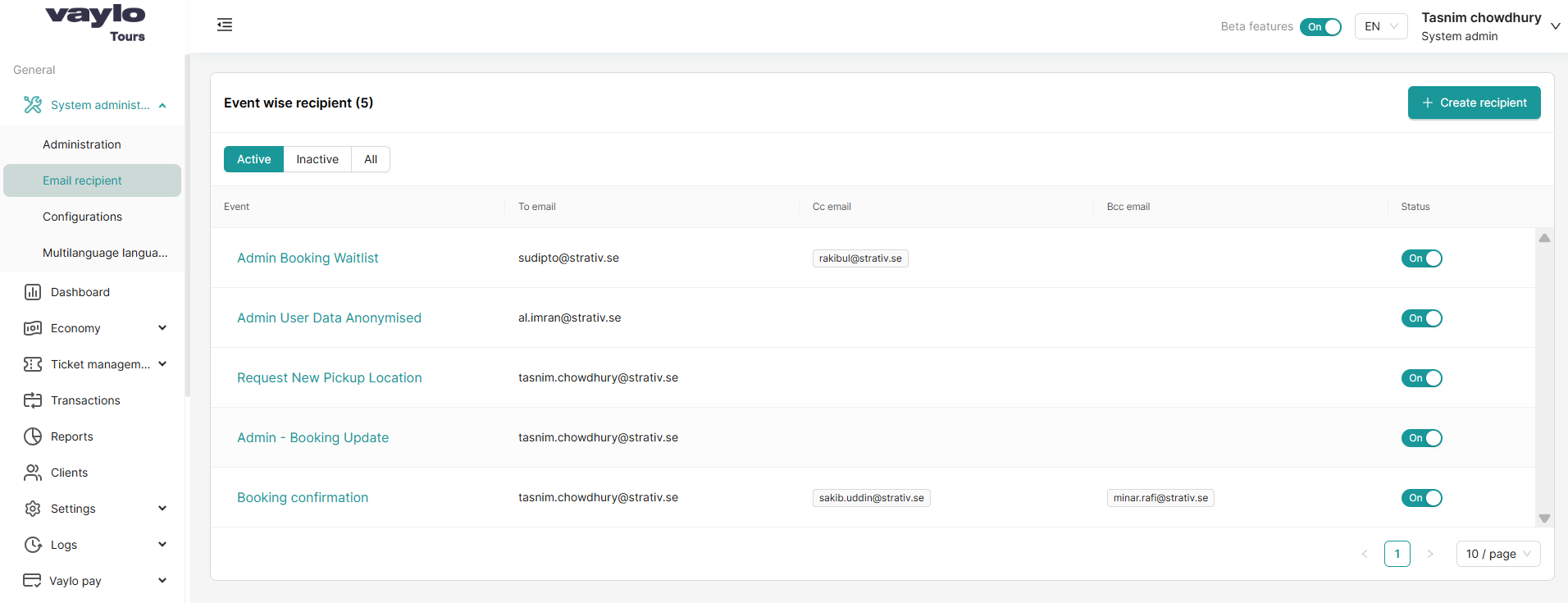
Understanding the List
The page shows all configured event-wise recipients with the following columns:
| Column | Description |
|---|---|
| Event | The system event that triggers the email (e.g., Booking confirmation, Admin Booking Waitlist) |
| To email | The primary recipient of the notification email |
| Cc email | Anyone copied on the email (optional) |
| Bcc email | Anyone blind copied on the email (optional) |
| Status | Toggle On/Off to enable or disable this notification |
You can filter the list by Active, Inactive, or All.
Event Types
Here are examples of events you can configure recipients for:
| Event | When it triggers |
|---|---|
| Admin Booking Waitlist | When a customer is added to a booking waitlist |
| Admin User Data Anonymised | When a user's personal data is anonymised in the system |
| Request New Pickup Location | When a customer requests a new pickup location |
| Admin - Booking Update | When an existing booking is updated |
| Booking confirmation | When a booking is confirmed |
Creating a New Recipient
- Click + Create recipient (top right)
- The Create event wise recipient popup will appear
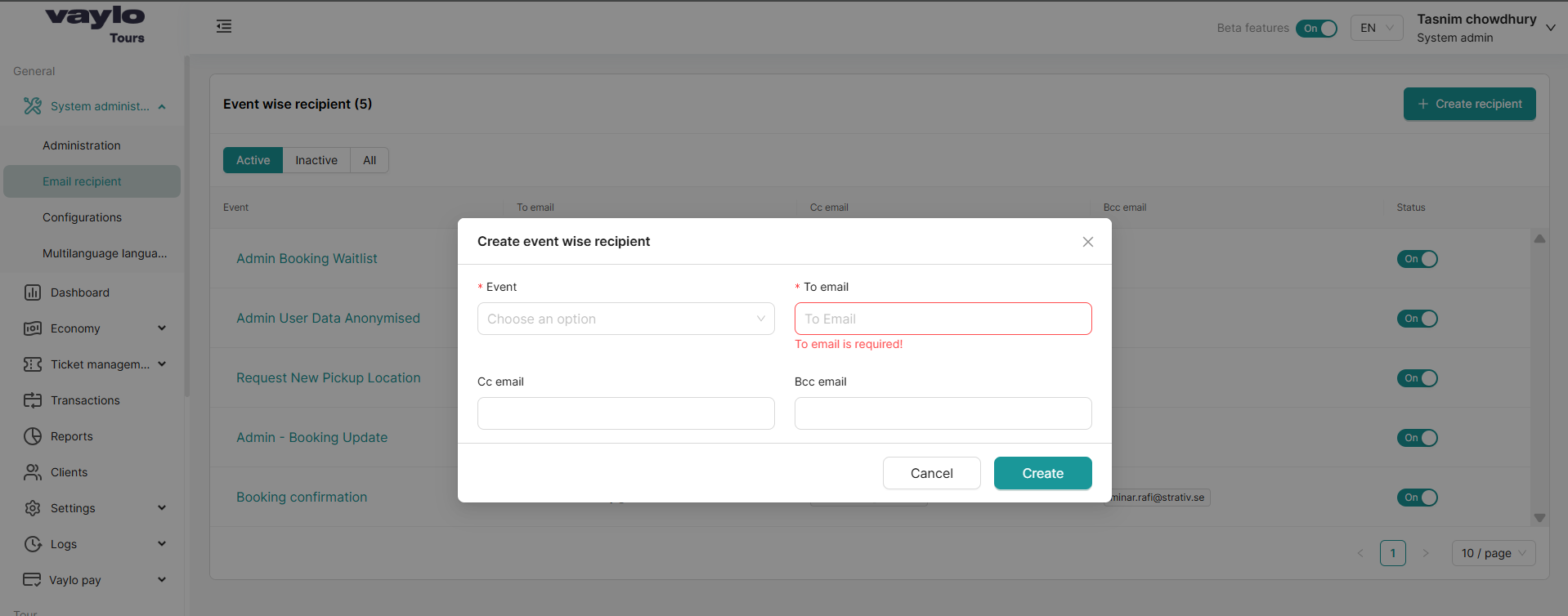
- Select the Event from the dropdown (required) — choose which system event should trigger this email
- Enter the To email (required) — the main recipient's email address
- Optionally enter a Cc email — this person will be copied on the email
- Optionally enter a Bcc email — this person will be blind copied on the email
- Click Create to save
Editing an Existing Recipient
- Click on the event name in the list to open it
- Update the email addresses as needed
- Save your changes
Enabling or Disabling a Notification
Toggle the Status switch on the right:
- On → the email notification is active and will be sent when the event occurs
- Off → the notification is disabled and no email will be sent for that event
tip
For important events like Booking confirmation, it's recommended to add a Bcc address (e.g., a shared team inbox) so that multiple people stay informed without being the primary recipient.