Gift Cards
The Gift Card feature allows travel companies to issue, manage, and redeem gift cards for their customers. Gift cards can be used as a payment method when booking trips and can be issued either by a company admin (internal) or purchased directly by customers via the public website widget (external).
Where it lives
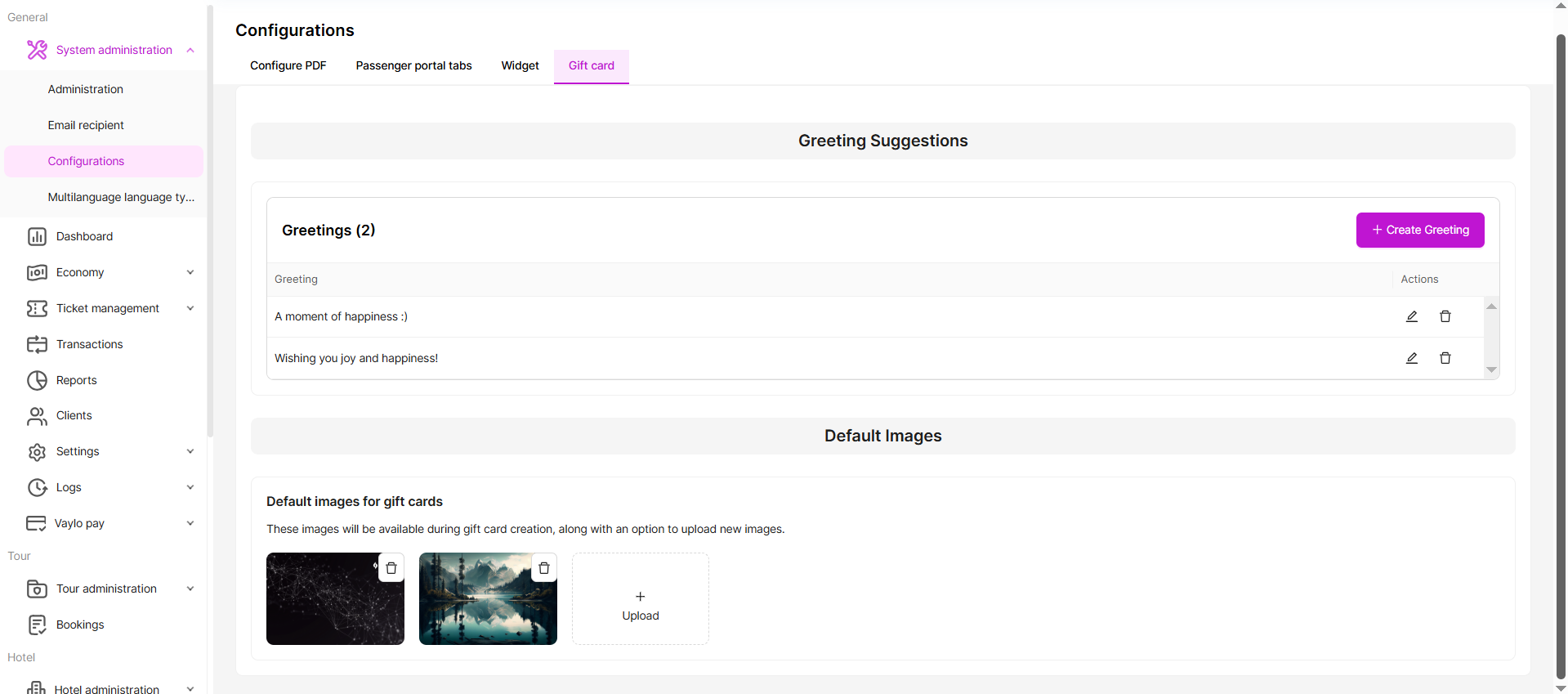
System Administration → Configurations → Gift card tab (for default greeting text and images). Gift card creation, listing, and redemption flows live elsewhere — see the relevant sections below.
The admin Configurations page has four tabs:
| Tab | What it controls |
|---|---|
| Configure PDF | What appears in the downloaded booking and quotation PDFs — see Configure PDF |
| Passenger portal | Which tabs are visible in the Passenger Portal and what they are called — see Passenger portal tabs |
| Widget | How the booking widget appears and behaves on your website — see Widget Configuration |
| Gift card | Default greeting text and images used on gift card PDFs and emails (this page) |
Key capabilities
- Create and issue gift cards from the Company Admin Panel
- Allow customers to purchase gift cards via the public website widget
- Redeem gift cards during trip booking through multiple channels
- Configure default expiry dates and draft card deletion periods
- Manage and monitor all gift cards from a central list view
- Deliver gift cards as PDF attachments via email
User roles
| Role | Description | Key actions |
|---|---|---|
| Company Admin | Staff using the Vaylo Admin Panel | Create, manage, and redeem gift cards |
| Passenger (Customer) | End-user with access to the Passenger Portal | Apply gift cards |
Creating gift cards (Admin)
Admins can create gift cards directly from the Vaylo Admin Panel. There are two creation modes: one for a specific passenger/external customer, and one for internal/administrative use.
Creating a gift card for a passenger or external customer
Use this flow when you want to issue a gift card directly to a customer. The passenger will receive an email with the gift card as a PDF attachment.
Steps:
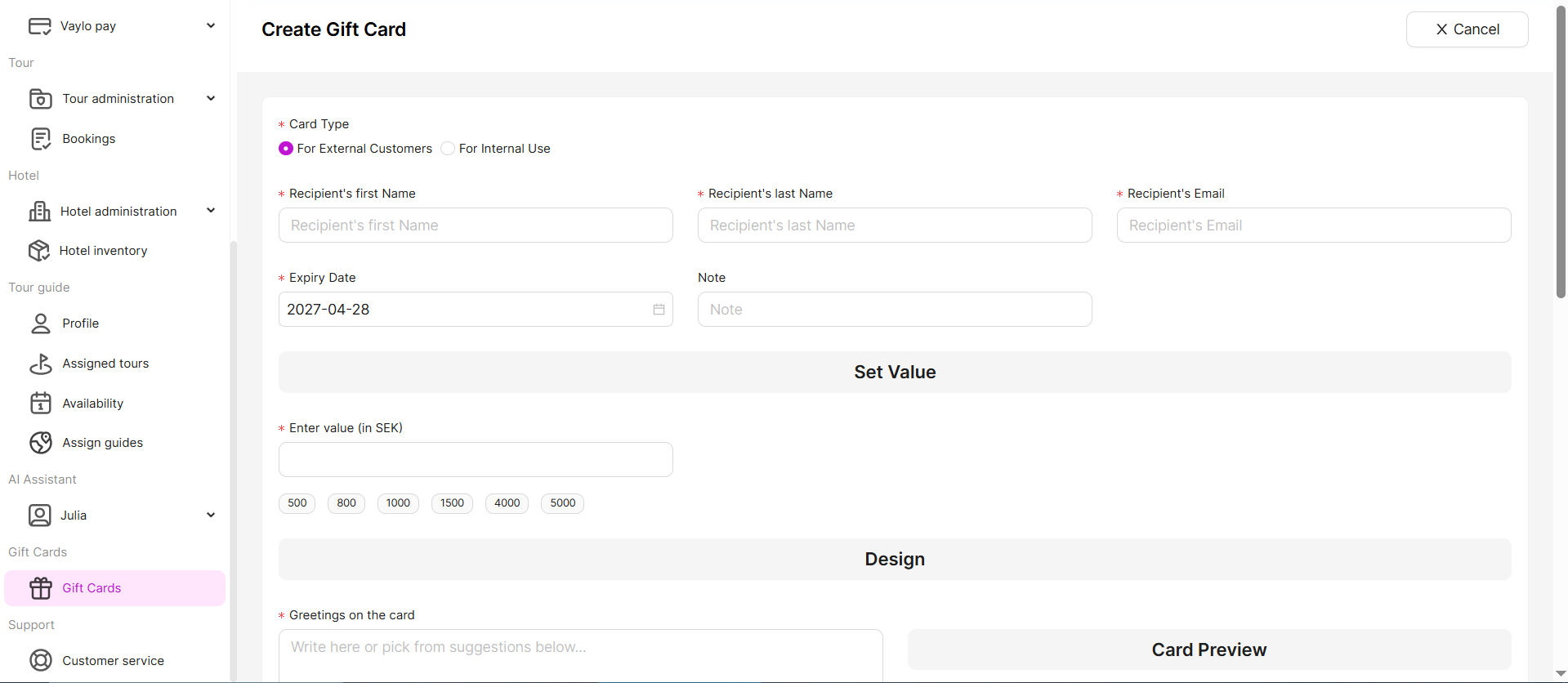
- Navigate to the Gift Cards section in the Admin Panel.
- Click the Create Gift Card button.
- Choose a Card Type (For External Customers).
- Fill in the recipient details (first name, last name, email).
- Optionally set or adjust the expiry date (defaults to the configured default).
- Set the gift card value (amount in the configured currency, e.g. SEK).
- Set the greeting text on the card.
- Choose or upload a picture for the card.
- Click Create and send payment request.
The recipient receives an email with the gift card PDF attached, stating that a gift card has been drafted for them and inviting them to complete payment via a secure payment link. Once payment is confirmed, the gift card is activated and can be used.
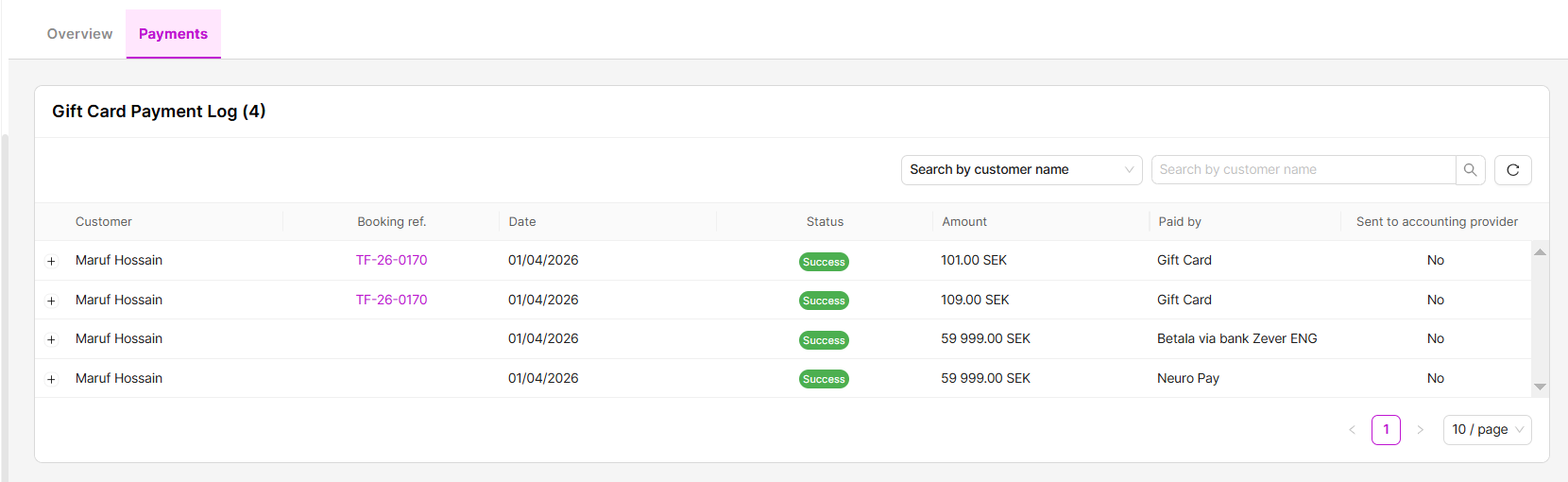
After completing the payment, the gift card payment log is visible from the Payments tab.
Creating a gift card for internal use (Admin only)
Use this flow to generate a gift card that is not tied to any passenger. This is useful for promotional purposes or manual distribution.
Steps:
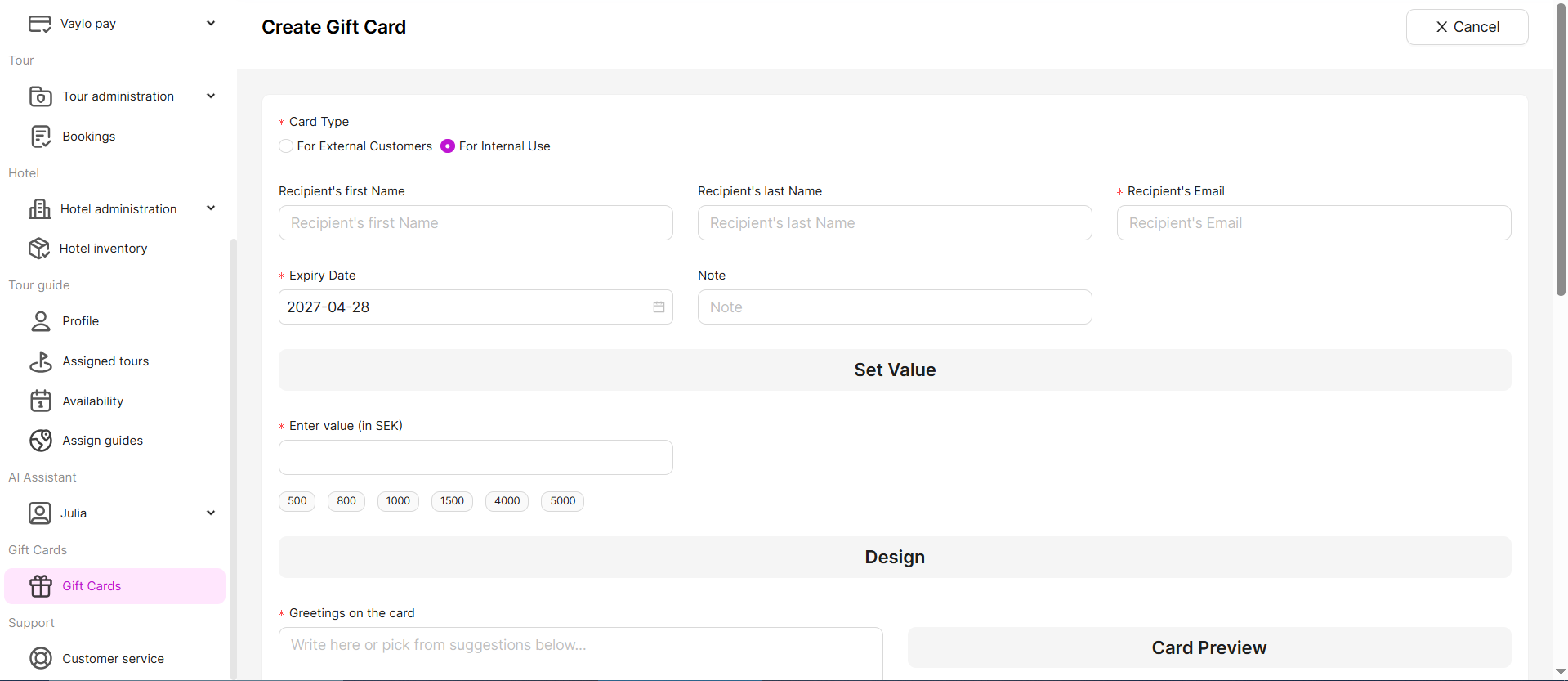
- Navigate to the Gift Cards section in the Admin Panel.
- Click the Create Gift Card button.
- Select the Internal Use option.
- Fill in the recipient's email.
- Optionally set or adjust the expiry date (defaults to the configured default).
- Set the gift card value (amount in the configured currency, e.g. SEK).
- Set the greeting text on the card.
- Choose or upload a picture for the card.
- Click Create card. The gift card will appear as Active in the gift card list.
The admin can distribute or apply the card code manually at a later time.
⚠️ Important: For internal gift cards, no payment is collected from a customer — the cost is handled as a company expense in the backend accounting.
Configuring gift card settings (Admin)
Company admins can configure default settings for all gift cards. These settings apply globally unless overridden at the time of creation.
Default expiry days for a gift card
Sets the default number of days after which a gift card expires. This value is pre-filled when creating new gift cards.
Steps:
- Go to System Administration in the Admin Panel.
- Under the System information section, set Default expiry days for a gift card (e.g. 365 days from creation date).
Default gift card draft expiry days
Draft gift cards (not yet paid or activated) can be automatically cleaned up after a configurable period.
Steps:
- Go to System Administration in the Admin Panel.
- Under the System information section, set Default Gift Card Draft Expiry Days (e.g. 7 days from creation date).
- Click Save.
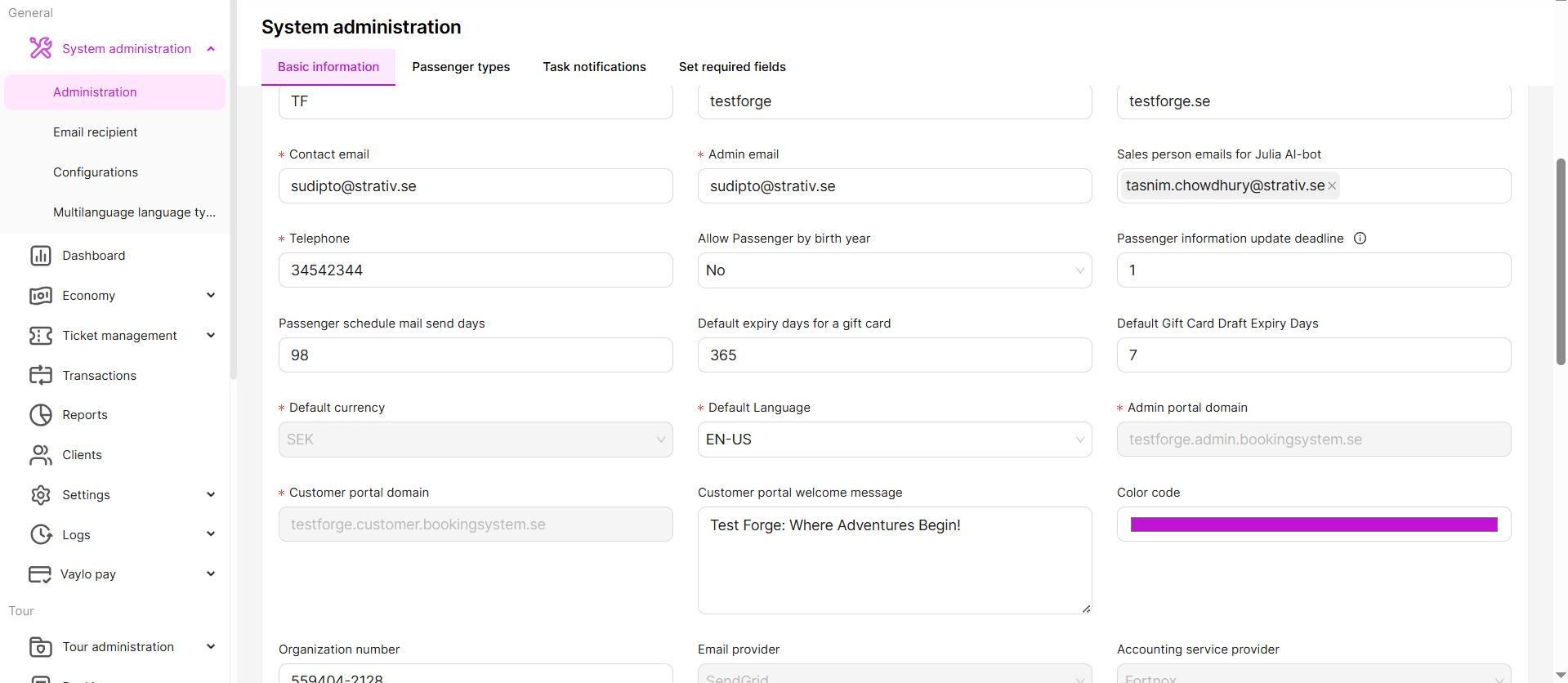
💡 Tip: Draft gift cards that exceed this period will be automatically deleted from the system to keep the gift card list clean.
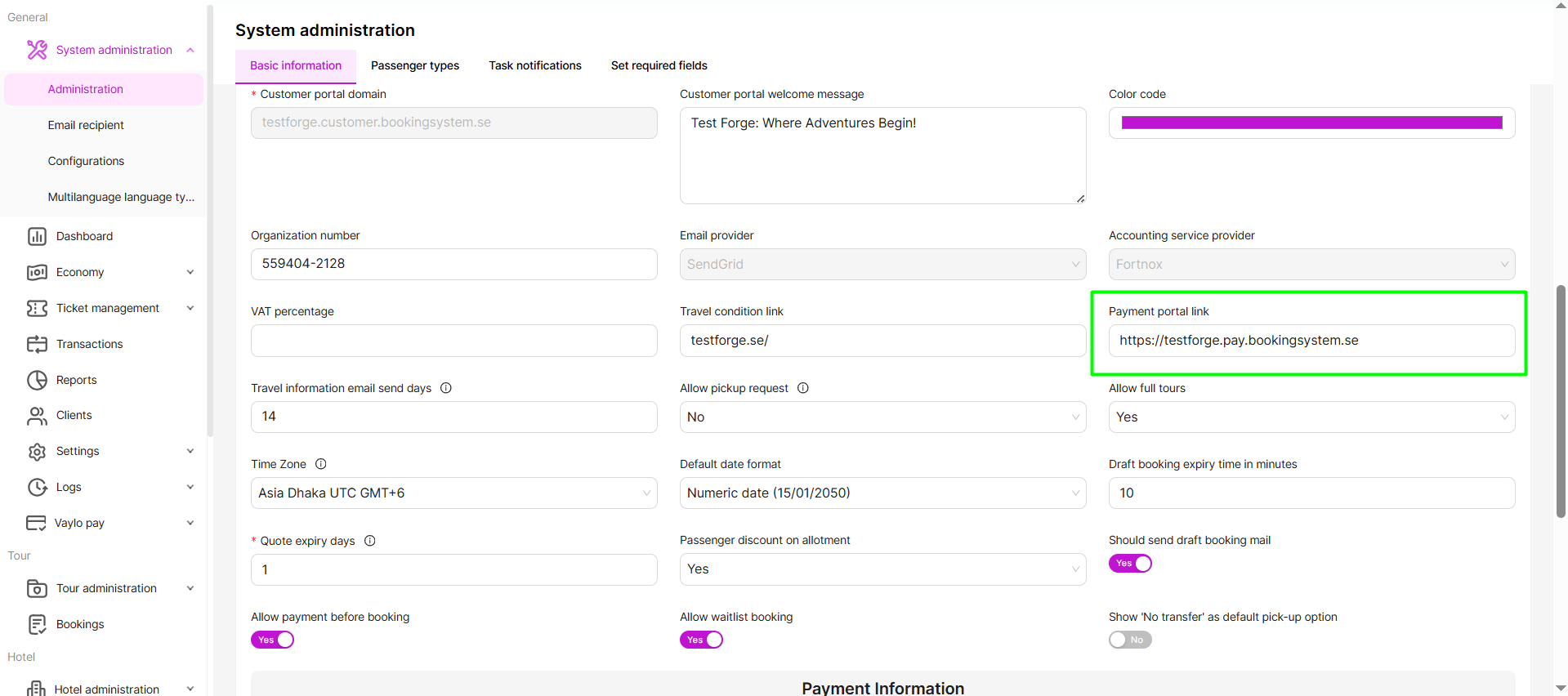
Payment portal link
The public payment portal link can be configured from System Administration.
Default configuration
Configure the default greeting text and images from System Administration → Configuration → Gift card.
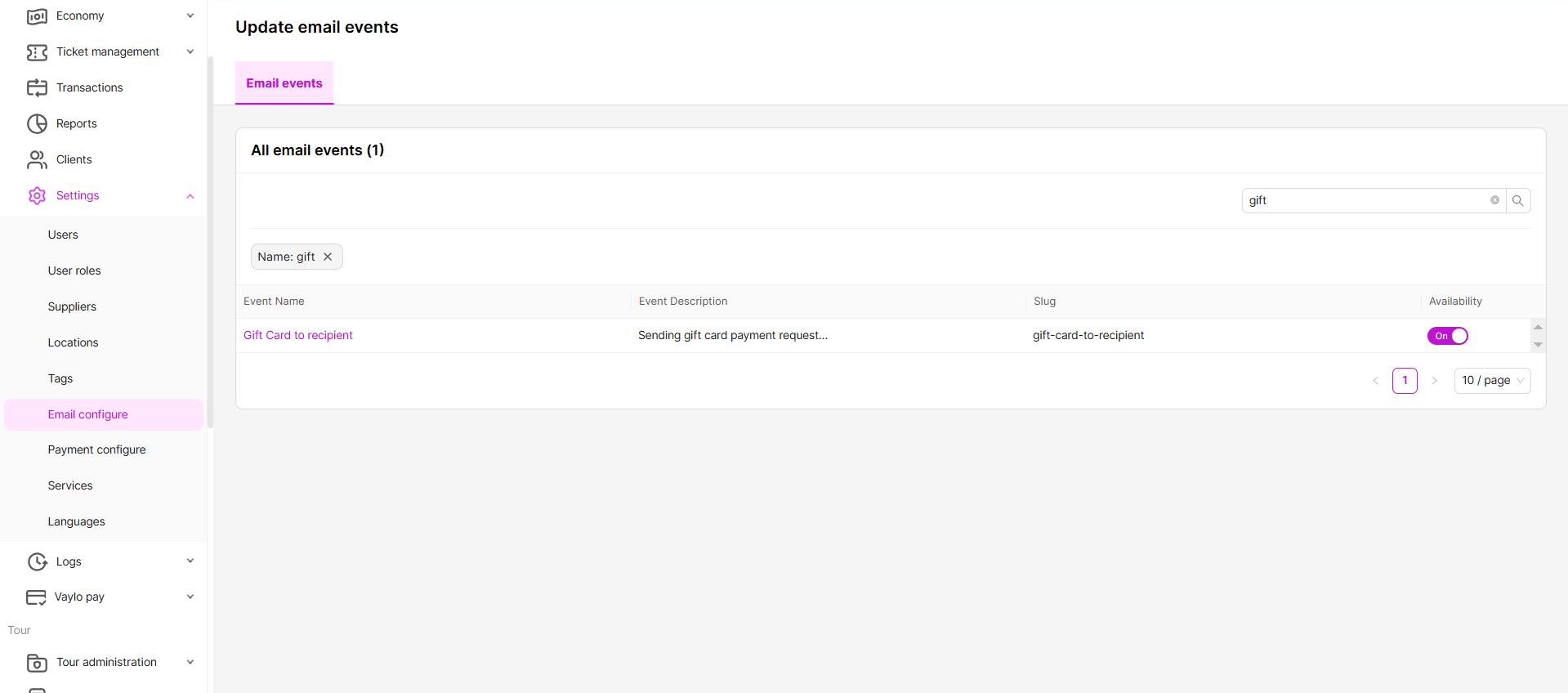
Email events
Set up an email event from Settings → Email Configuration → Gift Card to the recipient so the gift card email is sent.
Managing gift cards (Admin)
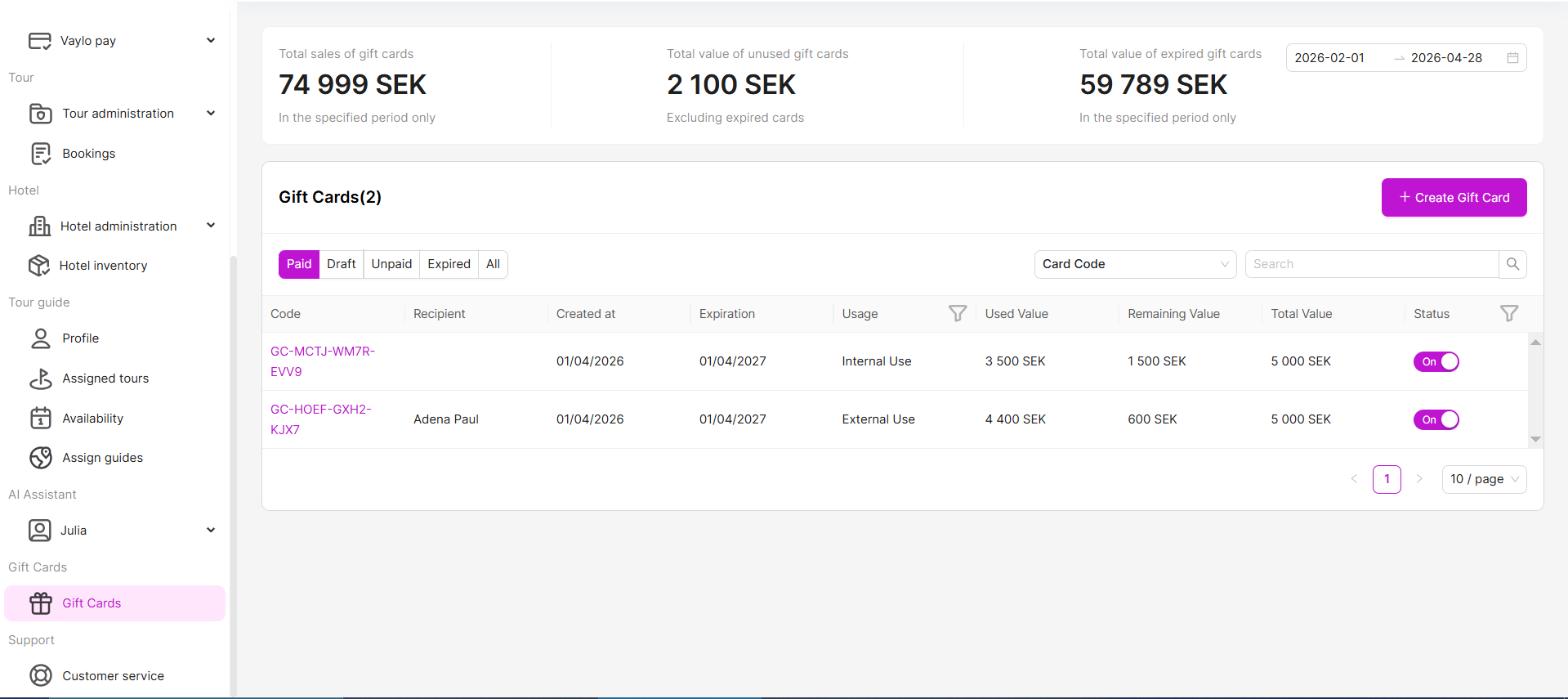
All gift cards — Paid, Draft, Unpaid, and Expired — are visible in the Gift Cards list in the Admin Panel. Admins can monitor status and take action from this view.
Gift card statuses
| Status | Description |
|---|---|
| Draft | Gift cards of both internal and external varieties can be stored as drafts. For external cards, this draft status persists until the payment process is finalized. |
| Paid | The gift card has been paid for and is ready to be used. For internal cards this is the initial status. For external cards the status becomes Paid after the payment is completed. |
| Unpaid | For external cards, the Unpaid status remains until payment has been finalized. |
| Expired | The gift card has expired and can no longer be used. |
Applying a discount using a gift card (Admin)
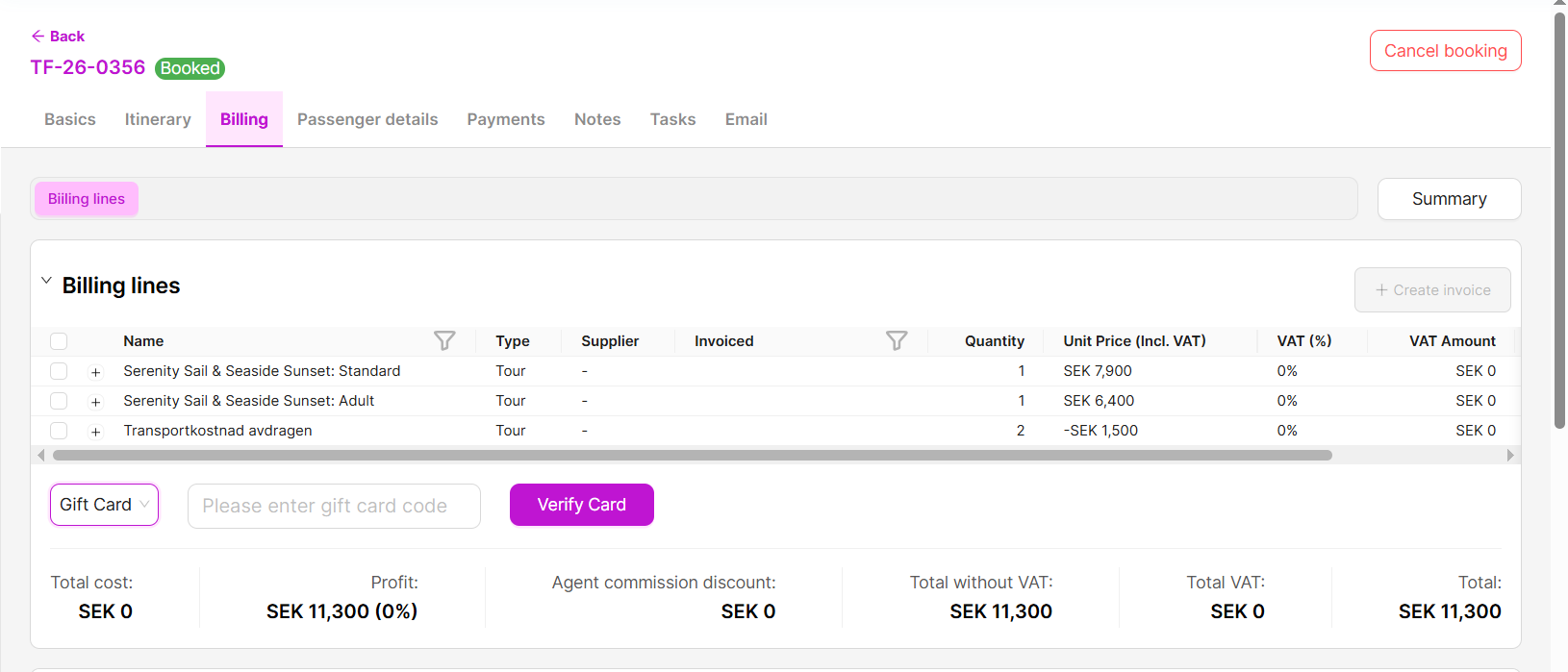
Admins can manually apply a gift card as a discount against a passenger's booking directly from the Admin Panel.
Steps:
- Open the relevant booking in the Admin Panel.
- Navigate to the Payment or Discount section.
- Select Apply Gift Card.
- Enter the gift card code.
- The system validates the code and applies the available balance as a discount.
- Confirm and save the booking.
📝 Note: If the gift card value exceeds the booking amount, the remaining balance stays on the card for future use.
Applying a gift card (redemption)
Gift cards can be redeemed through two different channels. The process is the same regardless of which channel is used — the customer or admin enters the gift card code to apply the balance.
Redemption channels
| Channel | Who uses it |
|---|---|
| Passenger Portal | Logged-in customers managing their own bookings |
| Admin Panel | Company admins applying a gift card on behalf of a customer |
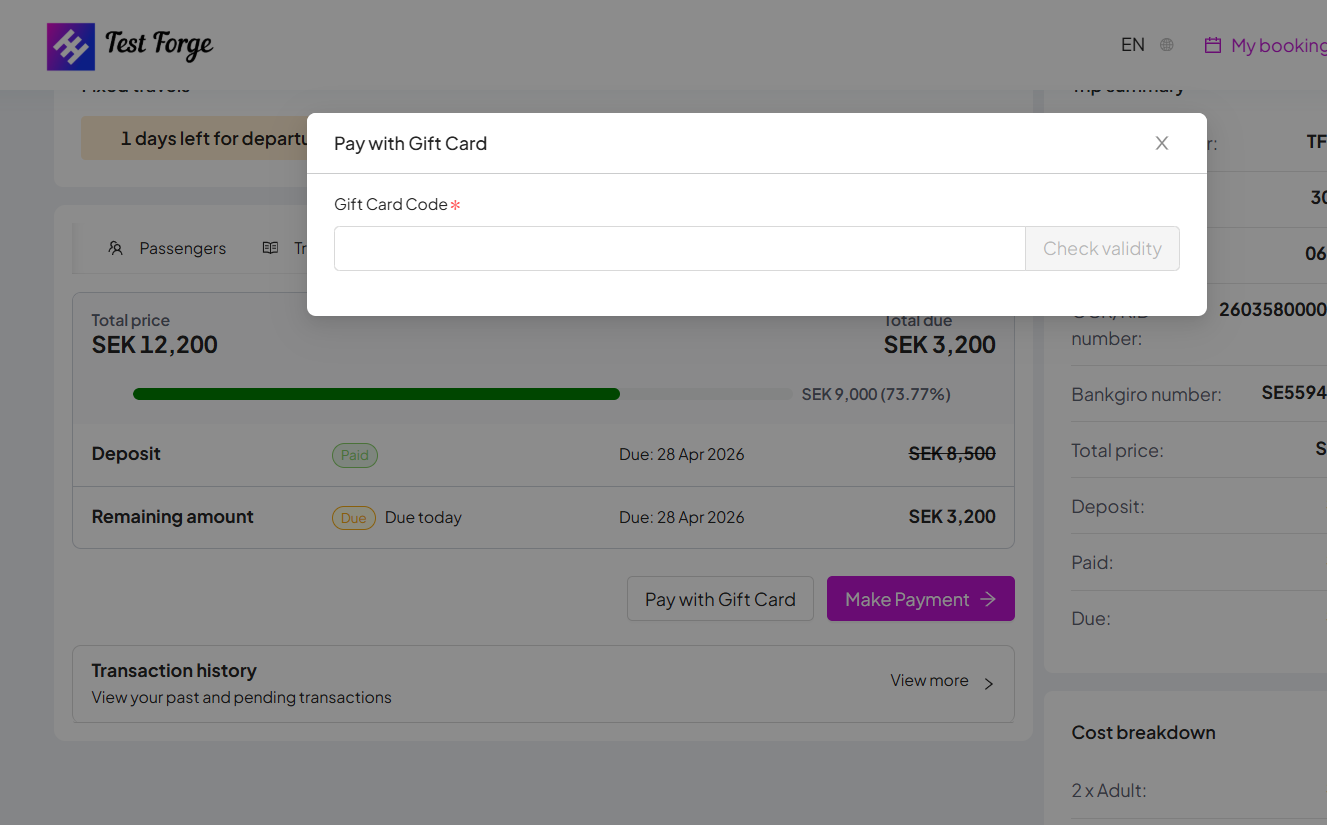
Applying a gift card via the Passenger Portal
Steps:
- Log in to the Passenger Portal.
- Open the booking you wish to pay or partially pay with a gift card.
- Click Pay with Gift Card.
- Enter the gift card code.
- The available balance is applied. If the balance does not cover the full amount, complete payment with another method.
Gift card PDF
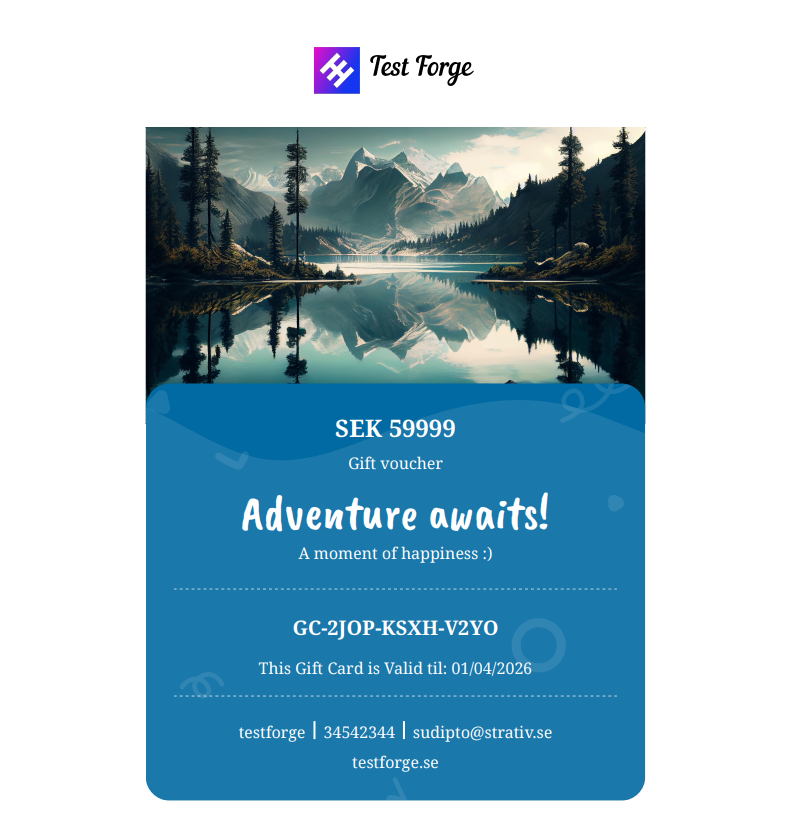
All issued gift cards are delivered as PDF attachments via email. The PDF contains all the information the recipient needs to redeem the card.
PDF contents:
- Gift card code (unique redemption code)
- Gift card value (amount and currency)
- Expiry date
- Issuing company name and branding